DejaDup - Backup Tools for Linux
https://apps.gnome.org/DejaDup/

DejaDup - Backup Tools for Linux
https://apps.gnome.org/DejaDup/

Ásbrú Connection Manager like PAC
https://www.asbru-cm.net/
- Instal Printer Driver HP on arch linux:
sudo pacman -S cups
systemctl enable cups && systemctl start cups
sudo pacman -S system-config-printer
sudo pacman -S hplip-plugin
yay -S hpuld
- Config Printer
sudo hp-setup -i <IP Printer>
- Install scanner:
sudo pacman -S sane
yay -S xsane
- Config print pdf file to printer
lpadmin -p <Printer_name> -o pdftops-renderer-default=pdftops
- Printer manager over web:
https://localhost:631
user/pass is on system
How to recursively chmod all directories Or files
To recursively give directories read&execute privileges:
find /path/to/base/dir -type d -exec chmod 755 {} +
To recursively give files read privileges:
find /path/to/base/dir -type f -exec chmod 644 {} +
Or, if there are many objects to process:
chmod 755 $(find /path/to/base/dir -type d)
chmod 644 $(find /path/to/base/dir -type f)
Note these recipes may not work correctly if you have whitespace in your input [also true of the xargs examples below].
Or, to reduce chmod spawning:
find /path/to/base/dir -type d -print0 | xargs -0 chmod 755
find /path/to/base/dir -type f -print0 | xargs -0 chmod 644
Sometimes, when you are executing a file transfer between your computer hard drive and an external drive and your computer shutdown for some reason (in my case, no battery/ac power) it’s pretty common to get some errors on external drives that uses NTFS as they file system.
The most common message is:
Error mounting: mount exited with exit code 13: $MFTMirr does not match $MFT (record 0).
Failed to mount ‘/dev/sdb3’: Input/output error
NTFS is either inconsistent, or there is a hardware fault, or it’s a
SoftRAID/FakeRAID hardware. In the first case run chkdsk /f on Windows
then reboot into Windows twice. The usage of the /f parameter is very
important! If the device is a SoftRAID/FakeRAID then first activate
it and mount a different device under the /dev/mapper/ directory, (e.g.
/dev/mapper/nvidia_eahaabcc1). Please see the ‘dmraid’ documentation
for more details.
One workaround for this issue is to do as the message says, boot on Windows and try to use the awesome NTFS tool that Windows offer. But a perfect solution for a Linux users is to use the ntfsprogs utility.
UPDATE: On some recent Linux releases, you need to install ntfs-3g utilties. Try sudo apt-get install ntfs-3g or download from http://www.tuxera.com/community/ntfs-3g-download/
ntfsprogs is a suite of NTFS utilities based around a shared library. The tools are available for free and come with full source code.
- mkntfs: Create an NTFS volume on a partition
- ntfscat: Print a file on the standard output
- ntfsclone: Efficiently backup/restore a volume at the sector level
- ntfscluster: Given a cluster, or sector, find the file
- ntfsfix: Forces Windows to check NTFS at boot time
- ntfsinfo: Dump a file’s attributes, completely
- ntfslabel: Display or set a volume’s label
- ntfslib: Move all the common code into a shared library
- ntfsls: List directory contents
- ntfsresize: Resize an NTFS volume
- ntfsundelete: Find files that have been deleted and recover them
- ntfswipe: Write zeros over the unused parts of the disk
- ntfsdefrag: Defragment files, directories and the MFT
- ntfsck: Perform consistancy checks on a volume
- nttools: Command-line tools to view/change an offline NTFS volume, e.g. ntfscp, ntfsgrep, ntfstouch, ntfsrm, ntfsrmdir, ntfsmkdir
- ntfsdiskedit: Walk the tree of NTFS ondisk structures (and alter them)
Be careful with these utilities, they might damage the filesystem, or your hard disk !
With ntfsprogs installed (sudo apt-get install ntfsprogs) you should execute the following commands in a terminal:
sudo ntfsfix /dev/partitionName
After this command you should expect the following output:
~$ sudo ntfsfix /dev/sdb3

Mounting volume... FAILED

Attempting to correct errors...

Processing $MFT and $MFTMirr...

Reading $MFT... OK

Reading $MFTMirr... OK

Comparing $MFTMirr to $MFT... FAILED

Correcting differences in $MFTMirr record 0...OK

Processing of $MFT and $MFTMirr completed successfully.

Setting required flags on partition... OK

Going to empty the journal ($LogFile)... OK

NTFS volume version is 3.1.

NTFS partition /dev/sdb3 was processed successfully.
After this step you should be able to access your external drive partition as usual, mount or use nautilus to access your files.
Source: http://gnuwin32.sourceforge.net/packages/ntfsprogs.htm
https://wmarkito.wordpress.com/2010/12/29/how-to-fix-mftmirr-does-not-match-mft-record-0/
In this article, we will show how to fix NTFS failed to mount errors such as “Failed to mount ‘/dev/sdax’: Input/output error, NTFS is either inconsistent, or there is a hardware fault, or it’s a SoftRAID/FakeRAID hardware”.
The following screenshot shows an example of an NTFS failed to mount error.
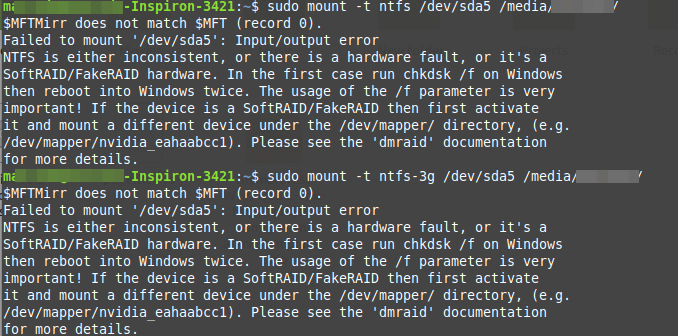
To fix this error, you can use ntfsfix, a tiny and useful utility that fixes some common NTFS problems. A ntfsfix is part of the ntfs-3g package (an open-source implementation of NTFS) and it repairs several fundamental NTFS inconsistencies, resets the NTFS journal file, and schedules an NTFS consistency check for the first boot into Windows.
To run it on our computer, you need to install the ntfs-3g package as follows.
----------- On Debian, Ubuntu & Mint -----------
$ sudo apt-get install ntfs-3g

----------- On RHEL, CentOS & Fedora -----------
$ sudo yum install epel-release
$ sudo yum install ntfs-3g
Once you have the ntfs-3g package installed, run the ntfsfix command, provide the NTFS partition that has issues as an argument as shown.
$ sudo ntfsfix /dev/sda5
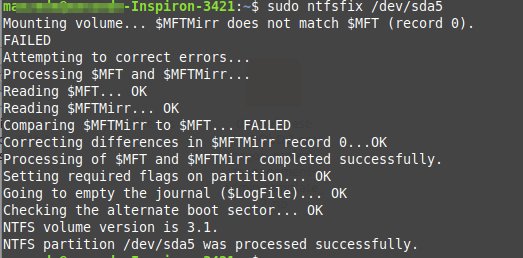
To perform a dry-run where ntfsfix doesn’t write anything but only shows what would have been done, use the -n or --no-action option.
$ sudo ntfsfix -n /dev/sda5
A ntfsfix has another useful switch -b or --clear-bad-sectors for clearing the list of bad sectors. This feature is particularly useful after cloning an old disk with bad sectors to a new disk.
$ sudo ntfsfix -b /dev/sda5
Also, ntfsfix supports clearing the volume dirty flag if the volume can be fixed and mounted. You can invoke this feature bypassing the -d option as shown.
$ sudo ntfsfix -d /dev/sda5
A nftsfix is a useful tool for fixing some common NTFS problems.
https://www.tecmint.com/fix-ntfs-partition-failed-to-mount-error/
Introduction:
In this post, I will explain how to expand disk space on a Linux system using Logical Volume Manager (LVM). Whether you’re dealing with a physical or virtual disk, this step-by-step tutorial will help you make the most of your storage without the need for a system reboot.
Step 1: Increase Disk Size
The first step is to increase the size of the disk that your Linux OS uses. This can be done by expanding the virtual disk in virtualization platforms like VMWare, KVM or Hyper-V. For this post, we’ll extend a 16 GB disk to 30 GB.
My Lab Details:
Hypervisor: VMware ESXi
VM: Ubuntu 22.04.1 LTS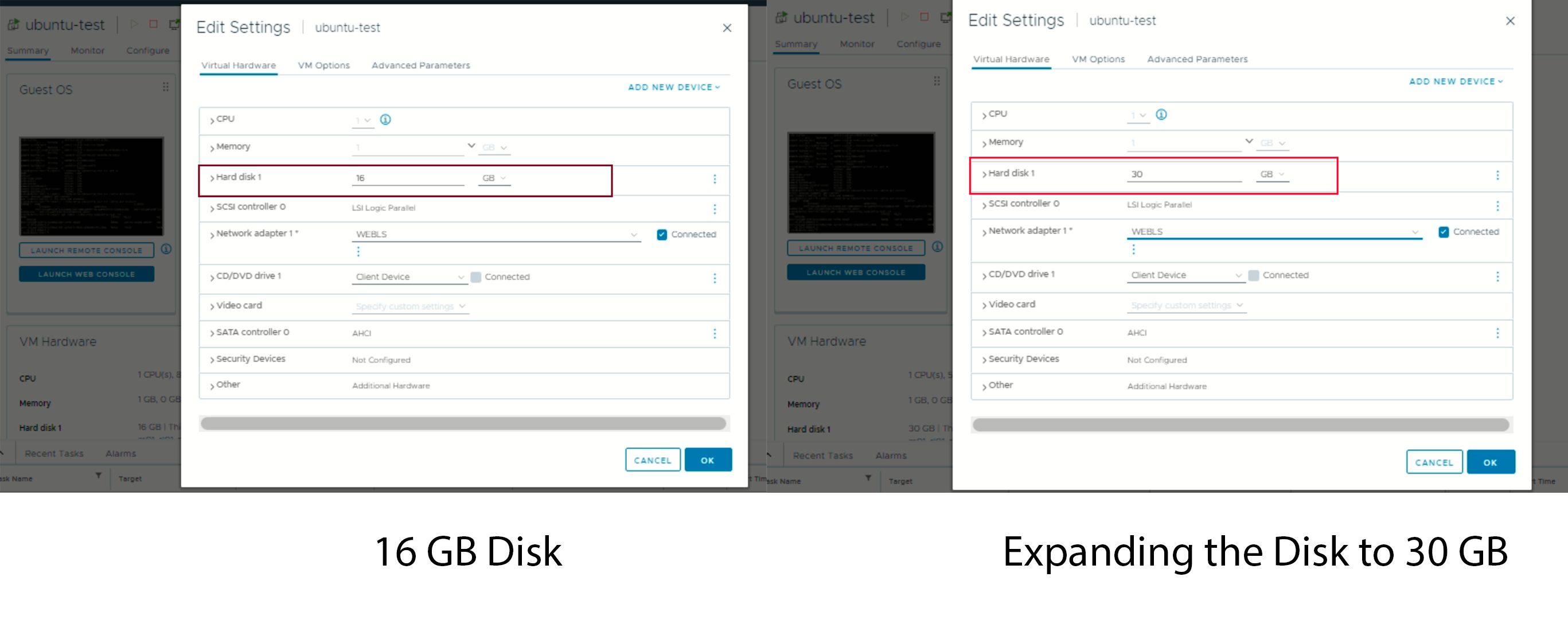
root@ubuntu-test:~# df -h
Filesystem                         Size  Used Avail Use% Mounted on
tmpfs                               98M  1.3M   96M   2% /run
/dev/mapper/ubuntu--vg-ubuntu--lv  9.8G  6.7G  2.6G  73% /
tmpfs                              486M     0  486M   0% /dev/shm
tmpfs                              5.0M     0  5.0M   0% /run/lock
/dev/sda2                          1.7G  247M  1.4G  16% /boot
tmpfs                               98M  4.0K   98M   1% /run/user/1000
Disk is still not visible/listed
Step 2: Rescan the Disk
After resizing the disk, you may need to prompt Linux to recognize the additional free space. To check for free space, run the cfdisk command and see if it lists free space. Use “q” to exit when done. If there’s no free space listed, initiate a rescan for /dev/sda with the command:
echo 1 > /sys/class/block/sda/device/rescanStage 2: Modify the partition within the VM
(Note: It is time to stop, if you have not backup all your data, or if you are not sure about what you are doing.)
Step 6: type the following command, find Disk /dev/sda, and confirm the size (of step 3).
$ sudo fdisk -l

Step 7: Run the command
$ sudo fdisk /dev/sda

Step 8: Type 'p' to check the partition info.
(Warning: if you have more than one partitions, STOP using this guide.)

Step 9: Type 'd' to delete Partition 1.

Step 10: Type 'p', and confirm the changes

Step 11: Type 'n', hit 'Enter' 4 times to use defaults ([Partition type], [Partition number], [first sector], and [last sector]), and type 'n'. (You might not need the last 'n'.)

Note: Chose [N]
Partition #3 contains a LVM2_member signature.
Do you want to remove the signature? [Y]es/[N]o: n
Step 12: Type 'p', confirm the changes, and then type 'w'

Step 13: Restart the virtual machine.
Stage 3: Resize the disk space within the VM
Step 14: Run following command
$ sudo resize2fs /dev/sda1

Step 4: Extend the Physical Volume (PV)
With the LVM partition backing up the /dev/sda3 PV extended, it’s time to extend the PV itself.
Run
pvresize /dev/sda3 to accomplish this, and then use pvdisplay to verify the new size. In our example, the PV has increased from 14.2GB to 28.2G.
Step 5: Check Volume Group (VG) Free Space
Now, check the VG’s free space using vgdisplay. In our case, there’s 18.25 GiB of free space available within the VG.
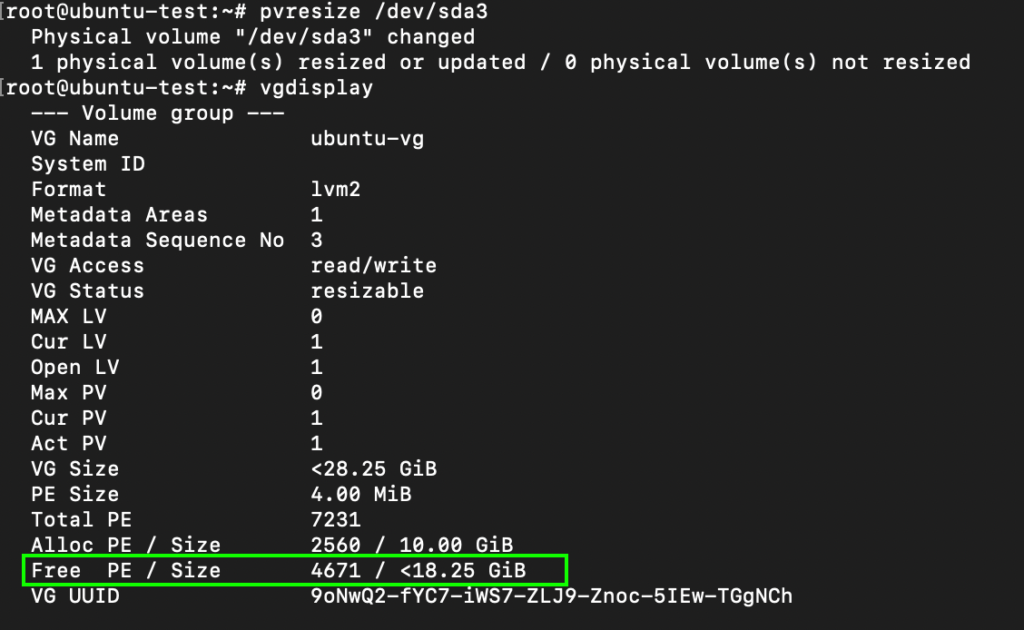
Step 6: Extend Logical Volume (LV)
Use lvdisplay to verify the size of
your upstream Logical Volume (LV). Extend the LV to use all available VG
free space with the below command
lvextend -l +100%FREE /dev/ubuntu-vg/ubuntu-lvCheck the LV one more time with lvdisplay to ensure it’s been extended.
root@ubuntu-test:~# lvextend -l +100%FREE /dev/ubuntu-vg/ubuntu-lv
  Size of logical volume ubuntu-vg/ubuntu-lv changed from 10.00 GiB (2560 extents) to <28.25 GiB (7231 extents).
  Logical volume ubuntu-vg/ubuntu-lv successfully resized.
root@ubuntu-test:~# lvdisplay
  --- Logical volume ---
  LV Path                /dev/ubuntu-vg/ubuntu-lv
  LV Name                ubuntu-lv
  VG Name                ubuntu-vg
  LV UUID                xL1oCY-qBRL-cT86-jRRr-0cWK-0P4W-U0Y1Dp
  LV Write Access        read/write
  LV Creation host, time ubuntu-server, 2023-04-12 11:44:17 +0000
  LV Status              available
  # open                 1
  LV Size                <28.25 GiB
  Current LE             7231
  Segments               1
  Allocation             inherit
  Read ahead sectors     auto
  - currently set to     256
  Block device           253:0
Step 7: Resize the File System
At this point, the block volume supporting your root filesystem has
been expanded, but the filesystem itself needs resizing. Run df -h to check the current filesystem size. Use the below command to resize it, and run df -h once more to confirm the new available space.
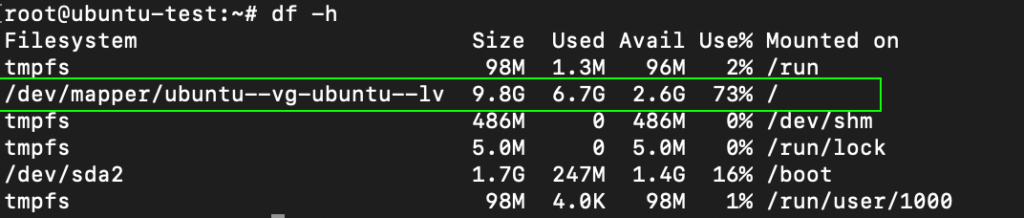
resize2fs /dev/mapper/ubuntu--vg-ubuntu--lv 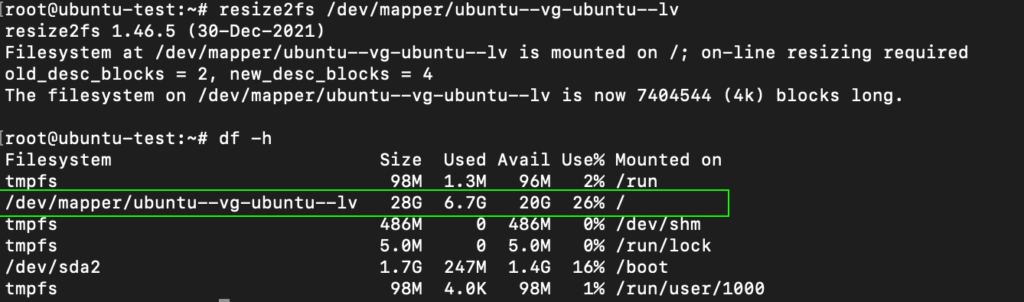
Following the above steps, you can successfully expand your Linux Machine/VM physical or virtual disk space using LVM. This allows you to efficiently manage your storage resources and accommodate growing storage needs without disrupting your system. Hope this helps.
Installed Remmina on Ubuntu 16.04 and had to reinstall Ubuntu after a
while because it wasn't running the best. On my first install, the
location of all the Remmina connection files was /home/$USER/.local/share/remmina/ folder ($USER is the current user).
After I reinstalled my new setup of Ubuntu put all the connection files in the same location /home/$USER/.local/share/remmina/
and started up Remmina I had no connection. After reading this post, I
created a new connection and seen a new folder created under /home/$USER/.remmina/ with that connection, so I copied all my connections into that folder /home/$USER/.remmina/.
sudo cp -r /home/$USER/.local/share/remmina/* /home/$USER/.remmina/
To send notifications from the Linux terminal, use the notify-send command. It's often already installed as a part of your desktop, but you can run which notify-send to confirm. If it's not installed yet, install it with your package manager of choice.
On Fedora and similar distributions, type:
$ sudo dnf install libnotify
On Debian-based distributions, type:
$ sudo apt install notify-sendA few examples of simple notifications:
$ notify-send "Dinner ready!"
$ notify-send "Tip of the Day" "How about a nap?"
You can customize the notification with options such as urgency level, custom icon, and so on. Find out more with man notify-send.
You can use a small set of HTML tags in the notification body to give
your messages a nice touch. On top of that, URLs are rendered as
clickable. For example:
$ notify-send -u critical \
  "Build failed!" \
  "There were <b>123</b> errors. Click here to see the results: http://buildserver/latest
Sent notifications are picked up by the desktop environment and displayed just like any other notification. They will have the same consistent look, feel, and behavior.
Cron is commonly used to schedule commands at regular intervals. The at
command schedules the single execution of a command at a specified
time. If you run it like this, it starts in interactive mode, where you
can enter commands to execute at a given time:
$ at 12:00This isn't useful for scripts. Luckily, at accepts parameters from standard input so that we can use it this way:
$ echo "npm run build" | at now + 1 minute
$ echo "backup-db" | at 13:00
There are many ways of specifying time. From absolute time, such as 10:00 through relative time, such as now + 2 hours, to special times such as noon or midnight. We can combine it with notify-send to show ourselves reminders at some time in the future. For example:
$ echo "notify-send 'Stop it and go home now?' 'Enough work for today.' -u
critical" | at nowNow, build a custom Bash command for sending yourself reminders. How about something as simple and human-friendly as:
$ remind "I'm still here" now
$ remind "Time to wake up!" in 5 minutes
$ remind "Dinner" in 1 hour
$ remind "Take a break" at noon
$ remind "It's Friday pints time!" at 17:00
See the code below. It defines a shell function called remind, which supports the above syntax. The actual work is done in the last two lines. The rest is responsible for help, parameter validation, etc., which roughly matches the proportion of useful code vs. necessary white-noise in any large application.
Save the code somewhere, for example, in the ~/bin/remind file, and source the function in your .bashrc profile so that it's loaded when you log in:
$ source ~/bin/remindReload the terminal, then type remind to see the syntax. Enjoy!
#!/usr/bin/env bash
function remind () {
  local COUNT="$#"
  local COMMAND="$1"
  local MESSAGE="$1"
  local OP="$2"
  shift 2
  local WHEN="$@"
  # Display help if no parameters or help command
  if [[ $COUNT -eq 0 || "$COMMAND" == "help" || "$COMMAND" == "--help" || "$COMMAND" == "-h" ]]; then
    echo "COMMAND"
    echo "    remind <message> <time>"
    echo "    remind <command>"
    echo
    echo "DESCRIPTION"
    echo "    Displays notification at specified time"
    echo
    echo "EXAMPLES"
    echo '    remind "Hi there" now'
    echo '    remind "Time to wake up" in 5 minutes'
    echo '    remind "Dinner" in 1 hour'
    echo '    remind "Take a break" at noon'
    echo '    remind "Are you ready?" at 13:00'
    echo '    remind list'
    echo '    remind clear'
    echo '    remind help'
    echo
    return
  fi
  # Check presence of AT command
  if ! which at >/dev/null; then
    echo "remind: AT utility is required but not installed on your system. Install it with your package manager of choice, for example 'sudo apt install at'."
    return
  fi
  # Run commands: list, clear
  if [[ $COUNT -eq 1 ]]; then
    if [[ "$COMMAND" == "list" ]]; then
      at -l
    elif [[ "$COMMAND" == "clear" ]]; then
      at -r $(atq | cut -f1)
    else
      echo "remind: unknown command $COMMAND. Type 'remind' without any parameters to see syntax."
    fi
    return
  fi
  # Determine time of notification
  if [[ "$OP" == "in" ]]; then
    local TIME="now + $WHEN"
  elif [[ "$OP" == "at" ]]; then
    local TIME="$WHEN"
  elif [[ "$OP" == "now" ]]; then
    local TIME="now"
  else
    echo "remind: invalid time operator $OP"
    return
  fi
  # Schedule the notification
  echo "notify-send '$MESSAGE' 'Reminder' -u critical" | at $TIME 2>/dev/null
  echo "Notification scheduled at $TIME"
}for DEV in `ls /sys/class/scsi_host`; do echo "- - -" > /sys/class/scsi_host/$DEV/scan; done
Note:
echo "- - -" > /sys/class/scsi_host/host#/scan
for DEV in `ls /sys/class/scsi_device`; do echo 1 > /sys/class/scsi_device/$DEV/device/rescan; done
Cấu hình HAProxy mapping tiến trình với CPU Core để tối ưu hoá – Khi bạn sử dụng hệ thống dịch vụ load balancing HA Proxy trên Linux để xử lý các kết nối HTTP SSL (HTTPS) hoặc cấu hình để HAProxy phải capture hoặc chỉnh sửa nội dung header HTTP Packet quá nhiều thì bạn sẽ gặp 1 vấn đề. Vấn đề đó là lượng tài nguyên CPU phải sử dụng cho các hoạt động mã hoá (encrypt)/giải mã (decript) SSL của HTTP hay hoạt động can thiệp HTTP Packet sẽ tăng cao (nhưng không hiệu quả) lên theo traffic vào hệ thống.

Và nếu bạn chưa biết thì HA Proxy mặc định chạy theo cơ chế single-thread và khởi động chỉ một hoặc hai tiến trình (process) để xử lý các kết nối. Mà nếu chạy trên môi trường server có nhiều core cpu (multi-core) thì HA Proxy mặc định cũng chỉ mapping một hoặc nhiều process sử dụng 1 CPU Core để hoạt động. Điều này vô hình chung không tối ưu hoá được HA Proxy trên server có nhiều CPU Core.
Từ phiên bản HA Proxy 1.5 trở đi (hiện tại version thời điểm viết bài đã là 1.8), thì HA Proxy đã hỗ trợ cho phép khi tạo ra số lượng process nhất định, bạn sẽ được phép gán (map) các tiến trình HAProxy sử dụng CPU Core cụ thể. Hoạt động này có tên gọi là “CPU Pinning” với 2 cấu hình đó là “nbproc” và “cpu-map” mà mình sẽ để cập ở dưới.
Kiểm tra phiên bản HA Proxy
# haproxy -v
HA-Proxy version 1.5.18 2016/05/10
Copyright 2000-2016 Willy Tarreau <willy@haproxy.org>
Kiểm tra số lượng CPU Core
# cat /proc/cpuinfo | grep "processor" | wc -l
8
Giả sử server mình có 8 Core CPU. Mình sẽ tính toán sử dụng 7 process HAProxy để tối ưu hoạt động tiến trình sẵn sàng xử lý các kết nối dịch vụ tới HA Proxy. Tương ứng 7 process HAProxy mình sẽ map mỗi process với 1 core CPU, chừa lại 1 core CPU cho việc khác.
Cấu hình ở mode global section trong file config HAProxy.
# vi /etc/haproxy/haproxy.cfg
global
    nbproc 7
    cpu-map 1 1
    cpu-map 2 2
    cpu-map 3 3
    cpu-map 4 4
    cpu-map 5 5
    cpu-map 6 6
    cpu-map 7 7
Chú thích :
Restart lại dịch vụ HA Proxy và kiểm tra số lượng tiến trình HA Proxy.
# systemctl restart haproxy
# ps aux | grep haproxy
root 31083 0.0 0.0 44172 1672 ? Ss 07:38 0:00 /usr/sbin/haproxy-systemd-wrapper -f /etc/haproxy/haproxy.cfg -p /run/haproxy.pid
haproxy 31084 0.0 0.0 48032 3416 ? S 07:38 0:00 /usr/sbin/haproxy -f /etc/haproxy/haproxy.cfg -p /run/haproxy.pid -Ds
haproxy 31085 0.0 0.0 48032 1640 ? Ss 07:38 0:00 /usr/sbin/haproxy -f /etc/haproxy/haproxy.cfg -p /run/haproxy.pid -Ds
haproxy 31086 0.0 0.0 48032 1640 ? Ss 07:38 0:00 /usr/sbin/haproxy -f /etc/haproxy/haproxy.cfg -p /run/haproxy.pid -Ds
haproxy 31087 0.0 0.0 48032 1640 ? Ss 07:38 0:00 /usr/sbin/haproxy -f /etc/haproxy/haproxy.cfg -p /run/haproxy.pid -Ds
haproxy 31088 0.0 0.0 48032 1640 ? Ss 07:38 0:00 /usr/sbin/haproxy -f /etc/haproxy/haproxy.cfg -p /run/haproxy.pid -Ds
haproxy 31089 0.0 0.0 48032 1640 ? Ss 07:38 0:00 /usr/sbin/haproxy -f /etc/haproxy/haproxy.cfg -p /run/haproxy.pid -Ds
haproxy 31090 0.0 0.0 48032 1640 ? Ss 07:38 0:00 /usr/sbin/haproxy -f /etc/haproxy/haproxy.cfg -p /run/haproxy.pid -Ds
Điều hay ho đó là bạn có thể chỉ định số lượng process HA Proxy sẽ sử dụng cho mục frontend hoặc backend tuỳ ý. Khá là hấp dẫn phải không nào, ví dụ như traffic HTTPS sẽ có nhu cầu sử dụng nhiều tiến trình HA Proxy hơn để xử lý chẳng hạn.
frontend access_http
   bind 0.0.0.0:80
   bind-process 1 2

frontend access_https
   bind 0.0.0.0:443 ssl crt /etc/yourdomain.pem
   bind-process 3 4 5 6 7
Chú thích :
- Install ibus-bamboo
echo 'deb http://download.opensuse.org/repositories/home:/lamlng/Debian_11/ /' | sudo tee /etc/apt/sources.list.d/home:lamlng.list curl -fsSL
https://download.opensuse.org/repositories/home:lamlng/Debian_11/Release.key | gpg --dearmor | sudo tee /etc/apt/trusted.gpg.d/home_lamlng.gpg > /dev/null sudo
apt update
sudo apt install ibus-bamboo
vi /etc/environment
export GTK_IM_MODULE=ibus
export XMODIFIERS=@im=ibus
export QT_IM_MODULE=ibus
- Install XRDP on Linux:
sudo apt install xrdp
sudo systemctl status xrdp
sudo adduser xrdp ssl-cert
sudo apt install xfce4 xfce4-goodies xorg dbus-x11 x11-xserver-utils
- Config file:
/etc/xrdp/sesman.ini
/etc/xrdp/startwm.sh
/etc/X11/Xsession
Use the ps command. I almost always use ps auxwww.
$ ps auxwww
USER       PID %CPU %MEM      VSZ    RSS   TT  STAT STARTED      TIME COMMAND
exegete  22199   0.0  0.2    79204   3280 s000  Z     9:16AM   0:00.78 vi
exegete  22185   0.0  0.0    75968    968 s000  S     9:16AM   0:00.01 -bash
According to the docs, a "Z" in the STAT column indicates a zombie process. Check the man pages: man ps
Using kill -9 <PID> to kill zomnie
OR
ps axo stat,ppid,pid,comm | grep -w defunct
ps -elf --forest | grep -C5 '<[d]efunct>' Basically:
1) Identify the zombie process:
ps axo stat,ppid,pid,comm | grep -w defunct
2) Kill the parent process:
sudo kill -9 <parent_process_number>
homeassistant:
    build: /home/docker-compose/homeassistant-custom
    restart: always
    volumes:
      - /dev:/dev
      - /tmp/.X11-unix:/tmp/.X11-unix
      - ~/.config/pulse/cookie:/root/.config/pulse/cookie
      - /run/user/1000/pulse:/run/user/1000/pulse
      - /var/run:/var/run
      - /run/dbus/:/run/dbus/:rw
      - /dev/shm:/dev/shm
    environment:
      - PULSE_SERVER=/run/user/1000/pulse/native
      - PULSE_COOKIE=/root/.config/pulse/cookie
    devices:
      - /dev/snd:/dev/snd
FROM homeassistant/home-assistant:latest
RUN apt-get update && \
    apt-get install -y vlc-nox apt-utils alsa-utils nano pulseaudio && \
    usermod -a -G audio root && \
    usermod -a -G pulse-access root
And use it in a script or automation.media_player: - platform: vlc name: speaker_1 arguments: '--alsa-audio-device=hw:0,0'
sudo vi /etc/systemd/system/rc-local.service
[Unit]
Description=/etc/rc.local Compatibility
ConditionPathExists=/etc/rc.local

[Service]
Type=forking
ExecStart=/etc/rc.local start
TimeoutSec=0
StandardOutput=tty
RemainAfterExit=yes
SysVStartPriority=99

[Install]
WantedBy=multi-user.target
/etc/rc.local is executable and add this code inside it:sudo chmod +x /etc/rc.local
#!/bin/sh -e
#
# rc.local
#
# This script is executed at the end of each multiuser runlevel.
# Make sure that the script will "exit 0" on success or any other
# value on error.
#
# In order to enable or disable this script just change the execution
# bits.
#
# By default this script does nothing.

exit 0
sudo systemctl enable rc-local
sudo systemctl start rc-local.service
sudo systemctl status rc-local.service
code to the /etc/rc.local file then restart it.


sudo apt-get install tftp tftpd expectNext on our todo list is configuring the tftp server. This should also be fairly easy:
# cat /etc/xinetd.d/tftp
service tftp
{
    protocol        = udp
    port            = 69
    socket_type     = dgram
    wait            = yes
    user            = nobody
    server          = /usr/sbin/in.tftpd
    server_args     = /tftpboot
    disable         = no
}
Restart your xinetd server when done.# /etc/init.d/xinetd restartMake sure the /tftpboot folder exists and is owned by user and group nobody:
# chown -R nobody:nobody /tftpbootYou should also create an empty file where you’d like to save your configuration and rerun the above command to adjust permissions.
# touch /tftpboot/config
# chown -R nobody:nobody /tftpboot
You should also create an empty file where you’d like to save your configuration and rerun the above command to adjust permissions.
# touch /tftpboot/config
# chown -R nobody:nobody /tftpboot
We can now test our newly configured tftpd server:
# cat /home/user/config
test 12

# tftp
tftp> open localhost
tftp> put config
Sent 146 bytes in 0.0 seconds

# cat /tftpboot/config
test 12
Excellent! We’re ready to receive config files from the Cisco device.
#!/usr/bin/expect

## TomDV
## http://blog.penumbra.be/2010/02/expect-scripts-backup-cisco-config/

# ---------------- configuration ---------------- #
set device 192.168.0.100    # cisco device
set tftp 192.168.0.200      # tftp server
set user someuser           # username
set pass ultrasecret        # password
set config                  # config destination
set timeout 60

# -------------- do not edit below -------------- #
spawn telnet $device
expect "Password:"
send "$pass\n"
expect ">"
send "en\n"
expect "Password:"
send "$pass\n"

send "copy running-config tftp://$tftp/$config\n\n"
expect "$tftp"
send "\n"
expect "$config"
send "\n"
send "exit\n"
Save it anywhere you like and run it from the shell. You’ll see something like this in your logs:
user in.tftpd[22304]: connect from 192.168.0.200 (192.168.0.200)
user tftpd[22305]: tftpd: trying to get file: config
user tftpd[22305]: tftpd: serving file from /tftpboot
That’s it. Your current Cisco config has been saved to /tftpboot/config.