WARNNING: This host is potentially vulnerable to issues described in CVE-2018-3646, please refer to https://kb.vmware.com/s/article/55636 for details and VMware recommendations.
Disable ESXi CVE-2018-3646 warning For LAB
When testing things in the homelab, I frequently work with older hardware.
This means that when you use ESXi, you might get the following warning:
This host is potentially vulnerable to issues described in CVE-2018-3646, please refer to https://kb.vmware.com/s/articles/55636 for details and VMware recommendations.
I typically chose to ignore the warning, as this is a lab anyway. And this is fine on a stand alone host, but it is pretty annoying when using vCenter.
So if you are in the same situation, here is how to disable the warning: Open your host configuration, go to System, Advanced System Settings, click “Edit…” The key you are looking for is:
UserVars.SuppressHyperthreadWarning
Set this to a value of 1, press “OK” and refresh the host. The warning should now disappear.
Please do keep in mind that the vulnerability is still present, you did not eliminate the risk, you only disabled the warning.
In this post, I will explain how to expand disk space on a Linux
system using Logical Volume Manager (LVM). Whether you’re dealing with a
physical or virtual disk, this step-by-step tutorial will help you make
the most of your storage without the need for a system reboot.
Step 1: Increase Disk Size
The first step is to increase the size of the disk that your Linux OS
uses. This can be done by expanding the virtual disk in virtualization
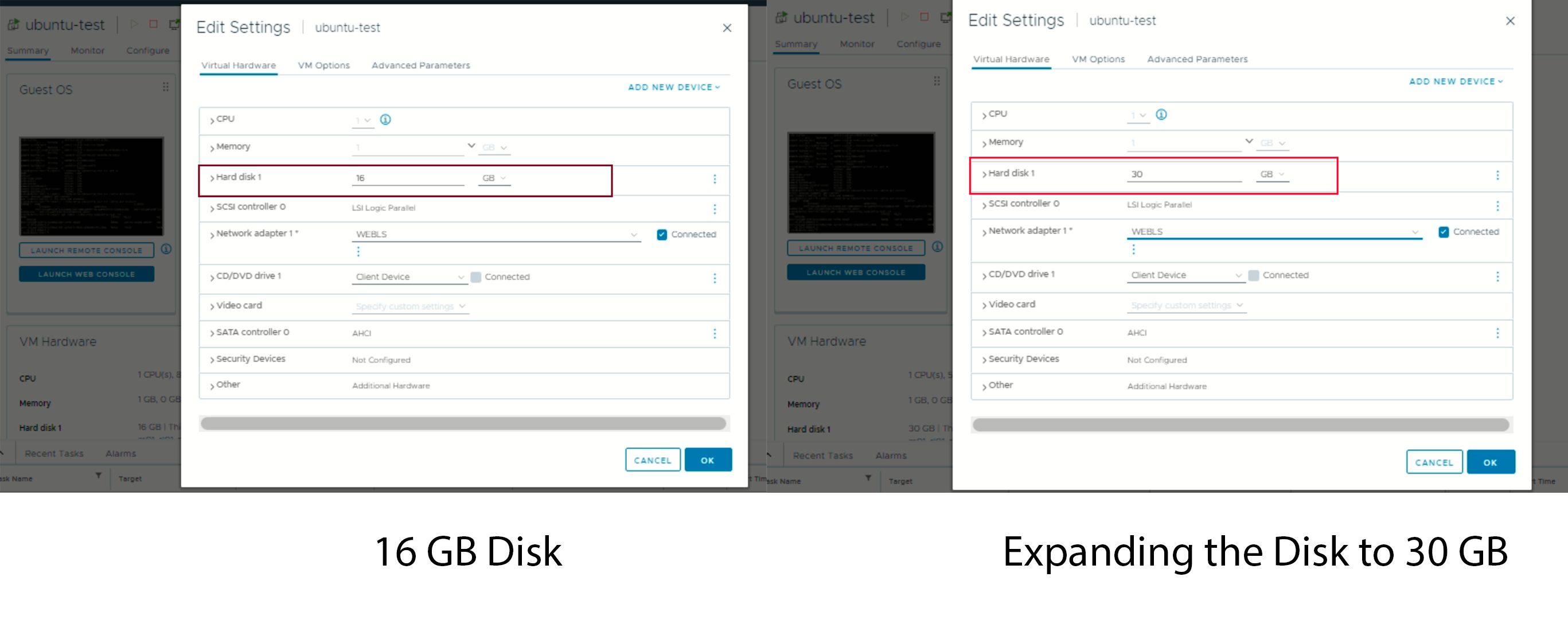
platforms like VMWare, KVM or Hyper-V. For this post, we’ll extend a 16 GB disk to 30 GB.
After resizing the disk, you may need to prompt Linux to recognize the additional free space. To check for free space, run the cfdisk command and see if it lists free space. Use “q” to exit when done. If there’s no free space listed, initiate a rescan for /dev/sda with the command:
echo 1 > /sys/class/block/sda/device/rescan
Stage 2: Modify the partition within the VM
(Note: It is time to stop, if you have not backup all your data, or if you are not sure about what you are doing.)
Step 6: type the following command, find Disk /dev/sda, and confirm the size (of step 3).
$ sudo fdisk -l
Step 7: Run the command
$ sudo fdisk /dev/sda
Step 8: Type 'p' to check the partition info.
(Warning: if you have more than one partitions, STOP using this guide.)
Step 9: Type 'd' to delete Partition 1.
Step 10: Type 'p', andconfirm the changes
Step 11: Type 'n', hit 'Enter' 4 times to use defaults ([Partition type], [Partition number], [first sector], and [last sector]), and type 'n'. (You might not need the last 'n'.)
Note: Chose [N]
Partition #3 contains a LVM2_member signature.
Do you want to remove the signature? [Y]es/[N]o: n
Step 12: Type 'p', confirm the changes, and then type 'w'
Step 13: Restart the virtual machine.
Stage 3: Resize the disk space within the VM
Step 14: Run following command
$ sudo resize2fs /dev/sda1
Step 4: Extend the Physical Volume (PV)
With the LVM partition backing up the /dev/sda3 PV extended, it’s time to extend the PV itself.
Run
pvresize /dev/sda3
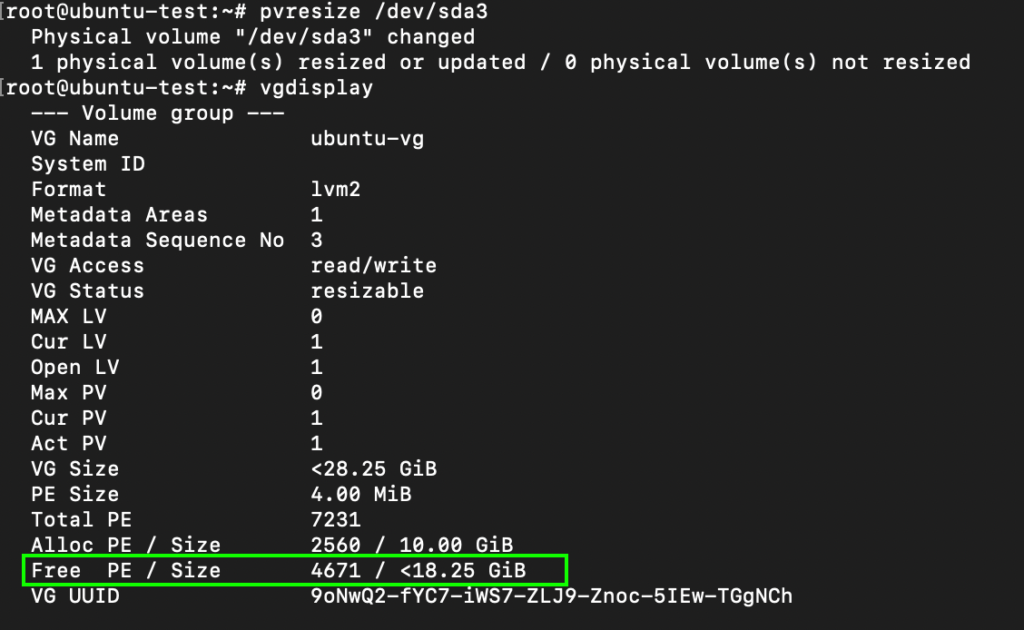
to accomplish this, and then use pvdisplay to verify the new size. In our example, the PV has increased from 14.2GB to 28.2G.
Step 5: Check Volume Group (VG) Free Space
Now, check the VG’s free space using vgdisplay. In our case, there’s 18.25 GiB of free space available within the VG.
Step 6: Extend Logical Volume (LV)
Use lvdisplay to verify the size of
your upstream Logical Volume (LV). Extend the LV to use all available VG
free space with the below command
lvextend -l +100%FREE /dev/ubuntu-vg/ubuntu-lv
Check the LV one more time with lvdisplay to ensure it’s been extended.
root@ubuntu-test:~# lvextend -l +100%FREE /dev/ubuntu-vg/ubuntu-lv
  Size of logical volume ubuntu-vg/ubuntu-lv changed from 10.00 GiB (2560 extents) to <28.25 GiB (7231 extents).
  Logical volume ubuntu-vg/ubuntu-lv successfully resized.
root@ubuntu-test:~# lvdisplay
  --- Logical volume ---
  LV Path                /dev/ubuntu-vg/ubuntu-lv
  LV Name                ubuntu-lv
  VG Name                ubuntu-vg
  LV UUID                xL1oCY-qBRL-cT86-jRRr-0cWK-0P4W-U0Y1Dp
  LV Write Access        read/write
  LV Creation host, time ubuntu-server, 2023-04-12 11:44:17 +0000
  LV Status              available
  # open                 1
  LV Size                <28.25 GiB
  Current LE             7231
  Segments               1
  Allocation             inherit
  Read ahead sectors     auto
  - currently set to     256
  Block device           253:0
Step 7: Resize the File System
At this point, the block volume supporting your root filesystem has
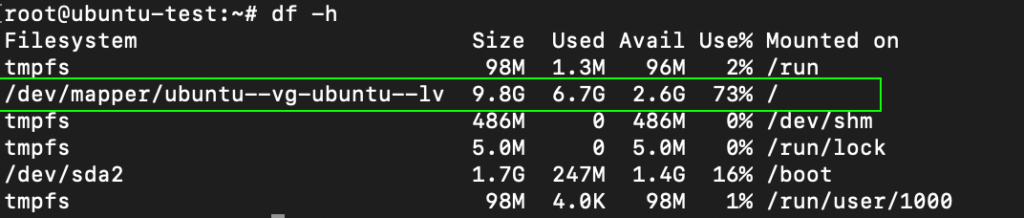
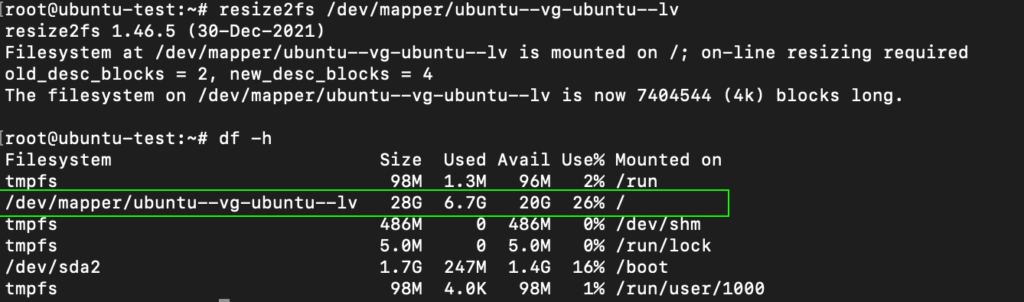
been expanded, but the filesystem itself needs resizing. Run df -hto check the current filesystem size. Use the below command to resize it, and rundf -h once more to confirm the new available space.
resize2fs /dev/mapper/ubuntu--vg-ubuntu--lv
Following the above steps, you can successfully expand your Linux
Machine/VM physical or virtual disk space using LVM. This allows you to
efficiently manage your storage resources and accommodate growing
storage needs without disrupting your system. Hope this helps.
Here are the commands I have used for the vCenter SNMP configuration.
Note: make sure you have access to the root account to perform the
login.
# Step 1: Start an SSH connection with the vCenter Server (use Putty or something equivalent).# Step 2: Login as the root user# Step 3: After a successful login you should be in the appliance Shell.# Step 4: View the current configuration for SNMP
snmp.get
# Step 5: Configure the SNMP Community (in this example I use MySnmpCommunity)
snmp.set --communities MySnmpCommunity
# Step 6: Allow a device to access the SNMP agent (192.168.10.10 = monitoring server)
snmp.set --targets 192.168.10.10@161/MySnmpCommunity,172.0.0.1@161/MySnmpCommunity,localhost@161/MySnmpCommunity
# Step 7: Enable the SNMP Agent
snmp.enable
# Step 7: Verify the SNMP Settings configured
snmp.get
# Step 8: Test the working (in my case it never works... not sure why? Has something to do with my access restrictions?)
snmp.test
# Step 9: Perform a test from the monitoring server (in my case a Linux machine with snmpwalk)
snmpwalk -v2c -c MySnmpCommunity %hostname-vcenter%
For Auvik to properly monitor your VMware ESXi hypervisor, you
must either manually classify the ESXi host as a hypervisor in Auvik or
enable SNMP for Auvik to automatically classify it.
To manually reclassify the hypervisor, see How do I edit device details? and select Hypervisor as the device type. Once you correctly classify the hypervisor, add your VMware credentials into Auvik.
To enable SNMP on your ESXi hypervisor, follow the steps below.
How to enable SNMP on an ESXi hypervisor
SNMP can be fully configured on an ESXi hypervisor through the ESX CLI. The commands vary between different versions of ESXi.
To gather more valuable and accurate data from your virtual environment, we highly recommended you have VMware Tools installed on each virtual machine.
You’ll need access to the vSphere CLI. If you don't have the vSphere CLI installed, download it from the VMware support website.
Execute the following commands. Replace YOUR_STRING with your desired community string. your_username and your_password correspond to your vSphere username and password, respectively.
If you selected a community string other than public or private, enter that string into Auvik by following these steps.
If in Step 2 you chose to “Apply these credentials to all devices we discover that meet the criteria below” ensure that:
Device Type = All Device Types
Vendor = All Vendors
You’re all done! Your VMware hypervisors will now be discovered by Auvik. If you haven’t already done so, you should now add your VMware credentials for your VMware hypervisors and hosts.
How to enable SNMP on ESXi 5.5
SSH or Telnet to your ESXi node using root-level credentials.
Execute the following commands. Replace YOUR_STRING with your desired community string.
esxcli system snmp set --communities YOUR_STRING
esxcli system snmp set --enable true
esxcli network firewall ruleset set --ruleset-id snmp --allowed-all true
esxcli network firewall ruleset set --ruleset-id snmp --enabled true
/etc/init.d/snmpd restart
If you selected a community string other than public or private, enter that string into Auvik by following these steps.
If in Step 2 you chose to “Apply these credentials to all devices we discover that meet the criteria below” ensure that:
Device Type = All Device Types
Vendor = All Vendors
You’re all done! Your VMware hypervisors will now be discovered by Auvik. If you haven’t already done so, you should now add your VMware credentials for your VMware hypervisors and hosts.
How to enable SNMP on ESXi 6.x
SSH or Telnet to your ESXi node using root-level credentials.
Execute the following commands. Replace YOUR_STRING with your desired community string.
esxcli system snmp set -r
esxcli system snmp set -c YOUR_STRING
esxcli system snmp set -p 161
esxcli system snmp set -L "City, State, Country"
esxcli system snmp set -C noc@example.com
esxcli system snmp set -e yes
If you selected a community string other than public or private, enter that string into Auvik by following these steps.
If in Step 2 you chose to “Apply these credentials to all devices we discover that meet the criteria below” ensure that:
Device Type = All Device Types
Vendor = All Vendors
You’re all done! Your VMware hypervisors will now be discovered by Auvik. If you haven’t already done so, you should now add your VMware credentials for your VMware hypervisors and hosts.
DRS
VM to host rules are used in DRS clusters to specify whether VMs can or
can’t be run on a host. These rules are used in conjunction with DRS
groups for ease of administration. A DRS group can either consist of one
or more VMs or one or more ESXi hosts.
You can create DRS groups using vSphere Web Client:
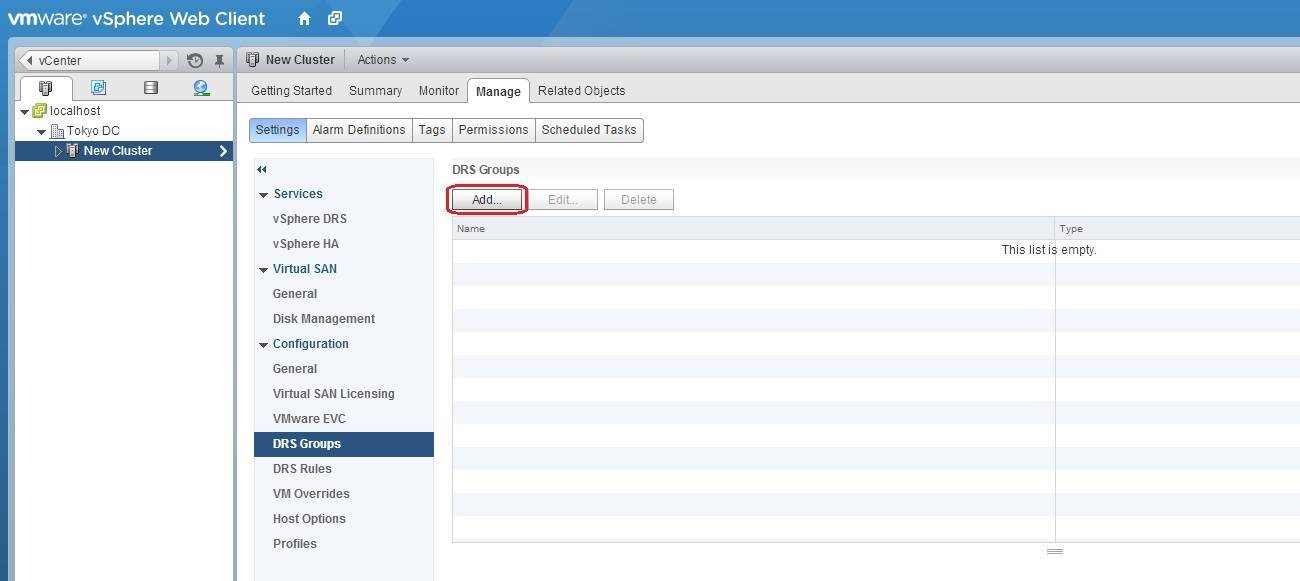
1. Select the DRS cluster in the inventory, go to Manage > Settings > DRS Groups, and click the Add button:
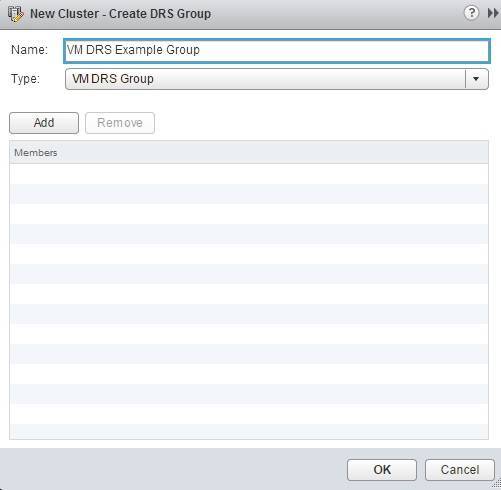
2. The Create DRS Group window opens. First we will create a VM DRS group. Enter the name for the group, select VM DRS Group as the group type, and click the Add button:
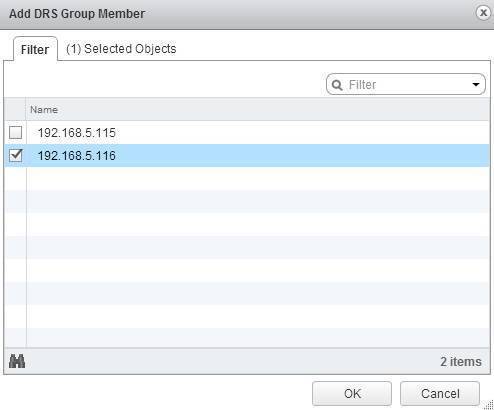
3. Select one or more VMs and click OK:
4. Click OK to create the group.
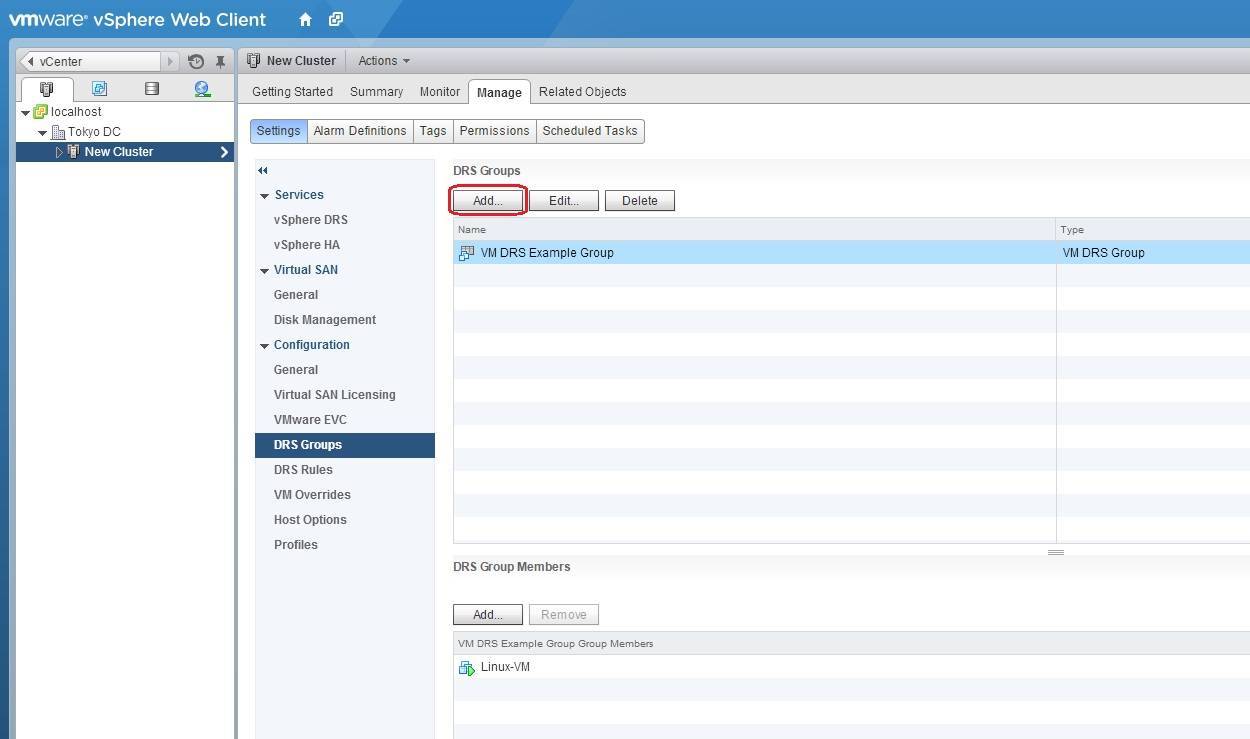
5. Next, we need to create a Host DRS group. In the DRS Groups panel, click Add:
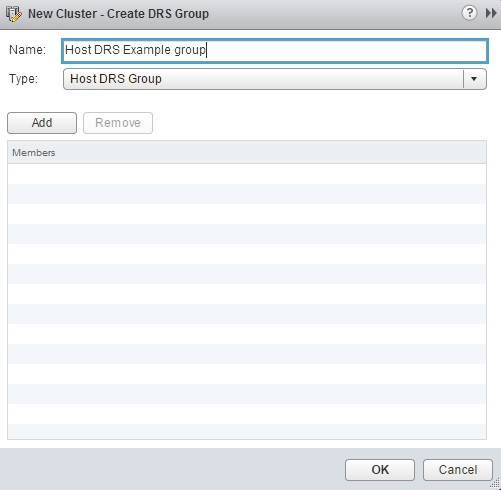
6. Type the name for the group, select Host DRS Group as the group type, and click the Add button:
7. Select one or more ESXi hosts and click OK:
8. Click OK to create the group.
After you’ve created DRS groups, you can create a VM to host rule using vSphere Web Client:
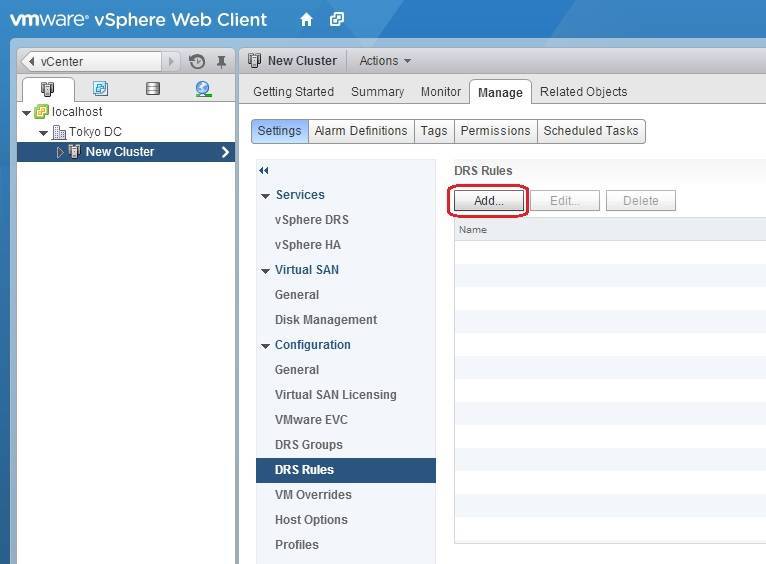
1. Select your cluster from the inventory, go to Manage > Settings > DRS Rules, and click the Add button:
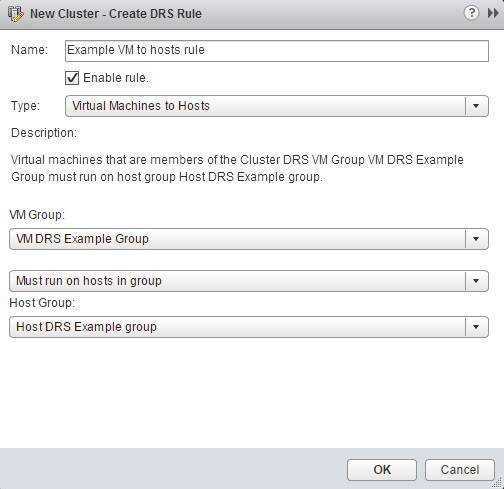
2. The Create DRS Rule
window opens. Type the name for the rule and choose the rule type. In
this example, we will create a rule that will keep a VM on a specific
host, so select the Virtual Machines to Hosts type. We will also select the DRS VM Group and the DRS Host Group we’ve created in the previous step and select the Must run on hosts in group option:
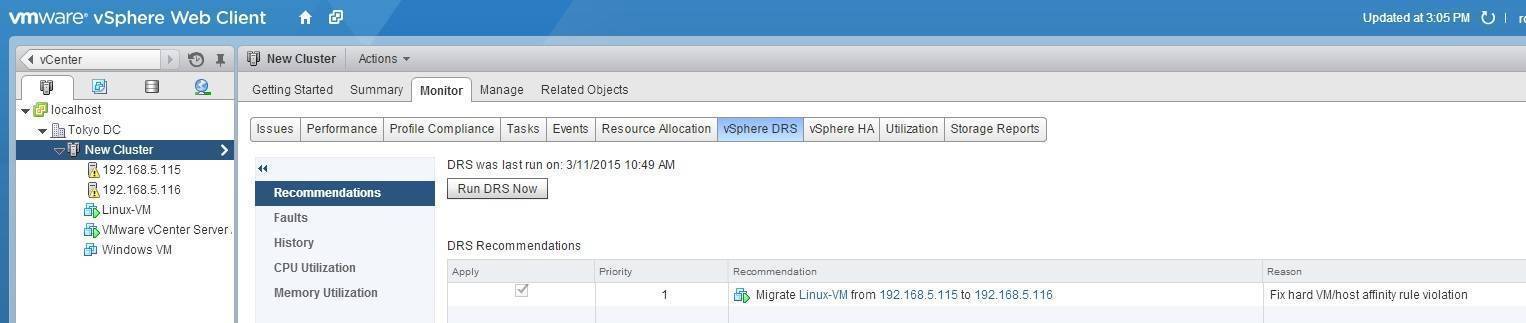
The rule we’ve created will force the VM from the group VM DRS Example Group (Linux-VM) to run on the host from the Host DRS Example Group (192.168.5.116). We can test this by selecting our cluster and going to Monitor > vSphere DRS. Because our VM is currently running on a different host, DRS will recommend to migrate Linux-VM to 192.168.5.116:
Vmware error: Cannot Start a VM - A general system error occurred: Connection refused
#####################
The error referenced in the title was one I ran into today while trying
to start some VMs. I finally found a KB somewhat related to this issue
and the workaround did the trick for me.
Basically, the vCenter Workflow Manager service had stopped on my
vCenter server. In my case, I'm running the 6.0.0 vApp so I had to open
an SSH session and enter the following:
shell.set --enabled true
shell
service-control --status vmware-vpx-workflow
(this command confirmed the service was stopped)
service-control --start vmware-vpx-workflow
Once running, I was able to start VMs again from vCenter.
#####################
To resolve this issue, start the VMware vCenter workflow manager service.
Windows vCenter Server
On the server that runs vCenter Server, open Start > Run, type services.msc and press Enter.
Right-click VMware vCenter workflow manager service and click start.
Attempt to power on the virtual machine again.
vCenter Server Appliance (VCSA)
Connect to the VCSA shell as root. For more information, see:
To determine how much RAM is installed in each slot on an ESX/ESXi host:
Login to the host using an SSH client.
Run one of these commands as user root:
dmidecode|less
Note: dmidecode|less is not available in 5.x versions.
smbiosDump
In the output, locate the blocks of text beginning with Memory Device. Size or Max. Size indicates the amount of memory installed. The output for slots that have memory modules installed appears similar to: Memory Device Array Handle: 0x1000 Error Information Handle: Not Provided Total Width: 72 bits Data Width: 64 bits Size: 4096 MB Form Factor: DIMM Set: 1 Locator: DIMM_A1 Bank Locator: Not Specified Type: <OUT OF SPEC> Type Detail: Synchronous Speed: 1333 MHz (0.8 ns) Manufacturer: 80AD009780AD Serial Number: 1680125F Asset Tag: 0109241D Part Number: HMT151R7AFP4C-H9 The output for slots that are empty appears similar to: Memory Device Array Handle: 0x1000 Error Information Handle: Not Provided Total Width: 72 bits Data Width: 64 bits Size: No Module Installed Form Factor: DIMM Set: 2 Locator: DIMM_A4 Bank Locator: Not Specified Type: <OUT OF SPEC> Type Detail: Synchronous Speed: Unknown Manufacturer: Serial Number: Asset Tag: Part Number:
- fdisk /dev/sda - p Device Boot Start End Sectors Size Id Type /dev/sda1 * 2048 999423 997376 487M 83 Linux /dev/sda2 1001470 33552383 32550914 15.5G 5 Extended /dev/sda5 1001472 33552383 32550912 15.5G 8e Linux LVM - d - 2 - n - e - enter - n - enter - t 8e
I ran this command to resize the physical volume. ubuntu@brick:~$ sudo pvresize /dev/sda5
Physical volume "/dev/sda5" changed
1 physical volume(s) resized / 0 physical volume(s) not resized
Then I ran this command to resize the logical root volume ubuntu@brick:~$ sudo lvresize -l +100%FREE /dev/mapper/brick-root
Extending logical volume root to 118.76 GiB
Logical volume root successfully resized
Then I ran this command to resize the file system on the root partition. This took about 6 seconds. ubuntu@brick:~$ sudo resize2fs /dev/mapper/brick-root
resize2fs 1.42.5 (29-Jul-2012)
Filesystem at /dev/mapper/brick-root is mounted on /; on-line resizing required
old_desc_blocks = 5, new_desc_blocks = 8
The filesystem on /dev/mapper/brick-root is now 31132672 blocks long.
There are a couple of tools I use with my test ESXi hosts, which are running with free licence and are not managed by vCenter. 1.WebUI
This nice package comes from VMware labs and allows you to acces some
features of the host from web interface, which is great as there is no
desktop vsphere client for Linux.
The package can be downloaded from here. The installation is pretty straightforward. After the installation you can access this UI from https://<esxhost>/ui/. Nice thing – it’s a little big faster the vsphere Web client and doesn’t use plugins. 2.ghettoVCB
I use this tool(github) to
create occasional backups and move VMs from one host to another, which
is much faster than using secure copy as it uses vStorage API (VCB). All
you need is to:
put it on your ESXi host with scp
unzip it (unzip tool is preinstalled on the host) to a datastore (if you unzip it to / it will be erased after reboot).
VM_BACKUP_VOLUME- the place the to put backups, usually it’s a folder on a remote datastore, mounted to the host
DISK_BACKUP_FORMAT – disk format, during the backup disk format can be
changed from thin to thick and from eager zeroed to lazy zeroed.
VM_BACKUP_ROTATION_COUNT – number of backups
POWER_VM_DOWN_BEFORE_BACKUP- combined with vmware tools on a guest systems this option allows graceful shutdowm of a VM.
ENABLE_HARD_POWER_OFF – forces shutdown.
create vms_to_backup file and list names of necessary VMs, each on a separate line
where each line specifies path to backup (the folder with vmdk file),
destination on a host where the machine would run, disk format type (4
for eagerzeroedthick) and a new name.
run restore scipt
# ./ghettoVCB-restore.sh -c vms_to_restore
The script will clone and register the VM on the destination host.
You can power it up from the client later, and client will ask you
whether you moved it (uuid and MAC will stay the same) or copied (uuids
and MAC would be regenerated and ruin MAC-bonded licences on your VM).
Full documentation on ghettoVCB can be found here(backup) and here(restore).
I
was just building a nested lab to record some demo videos. I find
myself googling for this every single time so I figured I would write
about it so I can easily get it of my own website. Many have written
about this before and all credits go to William Lam and Eric Gray, which are the two main blogs I have used in the past to get this working.
After installing ESXi on my physical box I “ssh” in to it. In order
to allow “nested ESXi” to boot a 64bit OS you will need to run the
following: echo 'vhv.allow = "TRUE"' >> /etc/vmware/config
After you have done that you will want to make sure you will get
network connection. Go to your “VM Network” portgroup, or if you named
it differently the portgroup that is used to connect the virtual ESXi
hosts to. For each of the hosts do the following:
Click on the host
Go to “Configuration”
Click on “Networking”
Click “Properties” on the vSwitch
Select the correct portgroup
Click “Edit”
Click “Security”
Set “Promiscuous Mode” to “Accept”
Click “Ok”
Click “Close”
Now for each virtual ESXi host (note there is a “guest os” called
ESXi 5 in there, use it!) that you have created do the following:
Right click on the VM
Click “Edit settings”
Click the “Options” tab
Click on “CPU/MMU virtualization”
Select the 4th option “Use Intel VT-x / AMD-v…”
I am building this out to record a new of “DR of the Cloud”. In other
words, 3 virtual clusters + vCloud Director + SRM + vSphere Replication
+ Virtual Storage Appliances… Cool stuff right.
**UPDATED for ESXi 5.1 HERE**
Since vSphere 5 was released earlier this year, it is now time to get
ready to pass the VCP exam. I am a VCP for both 3.5 and 4, and decided
I would post some updates along the way as I study before taking the
VCP 5 exam.
The first thing I did was create a lab environment. I currently use 2 whitebox ESXi 5 servers, attached to iSCSI storage.
However, since I am studying VMware products, I don’t want to
configure, and reconfigure these 2 ESXi servers constantly. Thankfully,
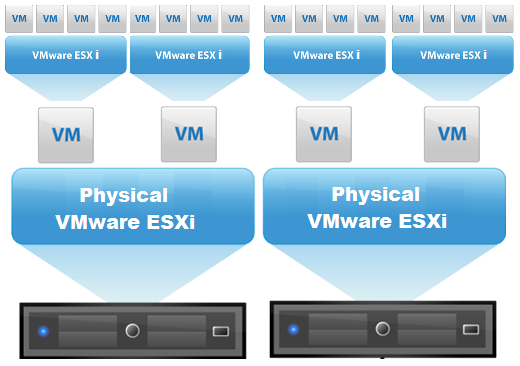
I can run Nested ESXi Servers – or, run ESXi 5 inside of ESXi 5. I can
even run 64bit guests inside of my virtualized ESXi servers! See
below:
Now, I can run more than 2 ESXi servers, and blow them away and recreate if needed. (yes, it will be slow).
In order to run ESXi 5 inside of ESXi 5, there are a couple of steps we need to do:
First, we will need to add a line to the etc/vmware/config file. Using SSH to connect to your ESXi server, type the following:
echo ‘vhv.allow = “true” ‘ >> /etc/vmware/config
Second, we need to make sure the networking is setup properly. On
each host, for your VM Network, enable promiscuous mode for the port
group.
click Configuration
click Networking
click Properties for your vSwitch with the VM Network (assuming your haven’t renamed”
Click “VM Network” and choose Edit.
Click Security
Check Promiscuous Mode and choose Enable.
Next, create a VM for each ESXi host with 2CPUs, and at least 4GB of
RAM. When creating the VM, make sure that it is version 8 HW, and that
for the operating system you choose “other” and select “Other (64
bit)”. Once the VM is created, we will choose to edit it’s settings.
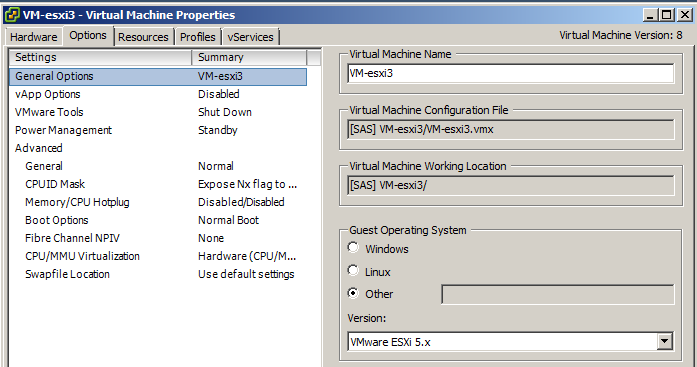
In the Options tab, you can now change the OS to “VMware ESXi 5.x”
Last, we need to make sure that under “CPUID Mask” that we expose the NX/XD Flag to the guest if it is not already.
Now, you can power on the VM, and install ESXi 5 from an ISO image.
Once installed, you can then create 64bit guests inside of your virtual ESXi server.
VMware Workstation 8
The best thing about VMware, is I can also virtualize ESXi inside
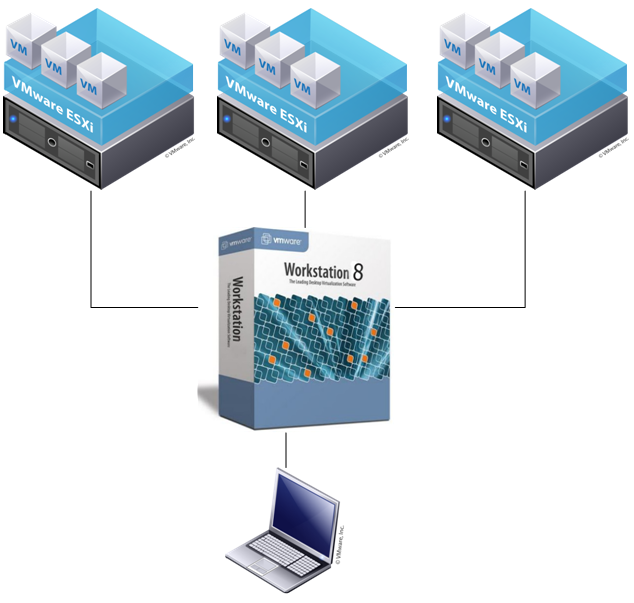
VMware Workstation! So on my laptop, in VMware Workstation, I can run
multiple ESXi servers, that in turn have VMs inside them. Even better
is the fact that I can have 64bit guests inside my ESXi servers running
inside VMware Workstation. Sounds confusing as I type, so here’s a
diagram:
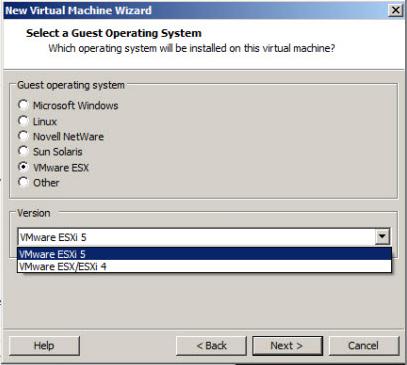
In order to run ESXi inside VMware workstation, we simply need to
select “VMware ESXi 5” as the operation system of the guest VM we are
creating.
Then, Edit the VM’s Settings, and under the Hardware tab, and processors, check the box to Virtualize Intel VT.
The option to run ESXi inside of VMware workstation is great,
especially for when you don’t have a lot of physical hardware to test
with.
3. Now that the cronjob is ready to go, you need to ensure that this
cronjob will persist through a reboot. You'll need to add the following
two lines to /etc/rc.local (ensure that the cron entry matches what was defined above). In ESXi 5.1, you will need to edit /etc/rc.local.d/local.sh instead of /etc/rc.local as that is no longer valid.
I am going through setting up Solarwinds Virtual Manager and needed
to enable SNMP on my vSphere 5.5 hosts. So the service set to
automatically start but it will not start without generating an error
when attempting to start the service as seen below.
So in case you run into the same thing it is as simple as running the
following commands on your individual hosts from a console session.
Replace YOUR_STRING with the community string that you would like to
use. The last command sets the firewall to allow all to poll SNMP.
esxcli system snmp set --communities YOUR_STRING
esxcli system snmp set --enable true
esxcli network firewall ruleset set --ruleset-id snmp --allowed-all true
esxcli network firewall ruleset set --ruleset-id snmp --enabled true
/etc/init.d/snmpd restart
You can change the firewall rule to only allow a specific subnet or host if you would like to.
So you are thinking well that is great but I have more than just a
few hosts and would like to run this using PowerCLI. So here you go, a
bit of PowerCLI to set your SNMP up on each of your hosts in vCenter.
# PowerCLI Script for adding syslogserver to hosts
# @mrlesmithjr
# EverythingShouldBeVirtual.com
# Change the following to match your environment
# vi_server is your vCenter
$vi_server = “vcenterservername”
$vcuser = "vcenterserverusername"
$vcpass = "vcenterserverpassword"
$communities = "public"
$syslocation = "Atlanta"

Connect-VIServer -Server $vi_server -User $vcuser -Password $vcpass

# Setup variable to use in script for all hosts in vCenter
$vmhosts = @(Get-VMHost)

# Configure syslog on each host in vCenter
foreach ($vmhost in $vmhosts) {
Write-Host ‘$vmhost = ‘ $vmhost
$esxcli = Get-EsxCli -VMHost $vmhost
$esxcli.system.snmp.set($null,$communities,"true",$null,$null,$null,$null,$null,$null,$null,$null,$null,$syslocation)
$esxcli.system.snmp.get()
}

Disconnect-VIServer * -Confirm:$false
So there you have it. You are good to go now. Have fun SNMP’ing away!
Enjoy!
List all VMs registered to this host (This reveals the Vmid needed for other commands) vim-cmd /vmsvc/getallvms
Unregister a VM vim-cmd /vmsvc/unregister <Vmid>
Register a VM vim-cmd /solo/register /path/to/file.vmx
Get power state of a VM vim-cmd /vmsvc/power.getstate <Vimid>
Power off a VM vim-cmd /vmsvc/power.off <Vmid>
Power on a VM vim-cmd /vmsvc/power.on <Vmid>
Or Stop VM:
Open a console session where the esxcli tool is available, either in the ESXi Shell, the vSphere Management Assistant (vMA), or the location where the vSphere Command-Line Interface (vCLI) is installed.
Get a list of running virtual machines, identified by World ID, UUID, Display Name and path to the .vmx configuration file, using this command:
esxcli vm process list
Power off one of the virtual machines from the list using this command:
esxcli vm process kill --type=[soft,hard,force] --world-id=WorldNumber
Note: Three power-off methods are available. Soft is the most graceful, hard performs an immediate shutdown, and force should be used as a last resort.
Add the line (all on one line) 5 0 * * * /full/path/to/script arguments/with/full/path > /full/path/to/logfile 2>&1
Run the command "cat /var/run/crond.pid" That will print the process number of the running crond, such as 12345
Run the command "kill 12345" where "12345" should be replaced with the number output by the previous command
For
details of the meaning of "5 0 * * *" (5 minutes past midnight every
day) read the man page for crontab(5) on any Unix/Linux server, or else on the web.
Now, add a command to /etc/rc.local to re-generate the cron job when ESX/ESXi reboots
Edit /etc/rc.local, using a command such as "vi /etc/rc.local".
At the end of the file, add 3 lines (using "G" then "O" in vi). The first kills crond, the second adds the new cron job to the root crontab file, ad the third restarts crond: /bin/kill $(cat /var/run/crond.pid) /bin/echo
'5 0 * * * /full/path/to/script arguments/with/full/path >
/full/path/to/logfile 2>&1' >>
/var/spool/cron/crontabs/root /bin/busybox crond
Save and exit the editor (Press the "Esc" key then ":wq" then press "Return" in vi)
Run the command "auto-backup.sh" so that the change to /etc/rc.local survives a reboot.
Every time you change the cron job, remember to update /etc/rc.local as well and run the "auto-backup.sh" command to backup the new /etc/rc.local file.
Last night I wrote an article about how to monitor the health of an ESXi server (link here) and I wanted to explain a bit more about my findings with SNMP on an ESXi host.
My goal with the monitoring was to use the check_dell and check_hp commands I have found for Nagios/Opsview to monitor the hardware that ESX is running on. The ESXi installs I am working with are using the Dell and HP management agents installed so I thought that everything would work out of the box and enabling SNMP would let me query the different aspects of the hardware.
The official line from VMWare was that SNMP is not enabled on ESXi and with no console cant be enabled. I knew however, having read a recent post on theTechHead blog(link here) that you could see the snmp.xml file and this shows that it is not enabled which made me think it must be possible to enable it. I was right.
A quick google came up withthis articleand I had a look and this was a fairly simple process to run:
First you need to enter the “unsupported” console on your ESXi server. To do this pressCtrl+Alt+F1at your ESX console, now type the wordunsupported(N.B. you will not see the text on your screen) and press Enter. If all goes well you should see a password prompt, enter your root password here and you should get a warning you are entering a mode that should only be enabled with VMWare support and be presented with a console.
type the following command to enter the VI text editor and start to modify the snmp.xml file:
vi /etc/vmware/snmp.xml
You should see a single line of text at the top of the screen which is the contents of the xml file. Pressito enter Insert mode and change
<enabled>false</enabled>
to
<enabled>true</enabled>
Then scroll across and add the community name you want the SNMP agent to respond on and place this between the following tags
<communities></communities>
so it should look like
<communities>public</communities>
I wasnt interested in setting up SNMP traps so left this blank and quit the VI editor by pressEscto exit insert mode and then:wqto write the file and quit the editor.
Finally we need to restart the services on the esx host which can be done with the following command
/sbin/services.sh restart
Great, SNMP is now enabled so I should be able to get the information from the HP/Dell management agents that I want. Wrong. My snmpwalk of the host provided little to no useful information about what I was trying to unlock.