How to Increase VMware Virtual Disk Size LVM


Introduction:

In this post, I will explain how to expand disk space on a Linux system using Logical Volume Manager (LVM). Whether you’re dealing with a physical or virtual disk, this step-by-step tutorial will help you make the most of your storage without the need for a system reboot.

Step 1: Increase Disk Size

The first step is to increase the size of the disk that your Linux OS uses. This can be done by expanding the virtual disk in virtualization platforms like VMWare, KVM or Hyper-V. For this post, we’ll extend a 16 GB disk to 30 GB.

My Lab Details:

Hypervisor: VMware ESXi
VM: Ubuntu 22.04.1 LTS
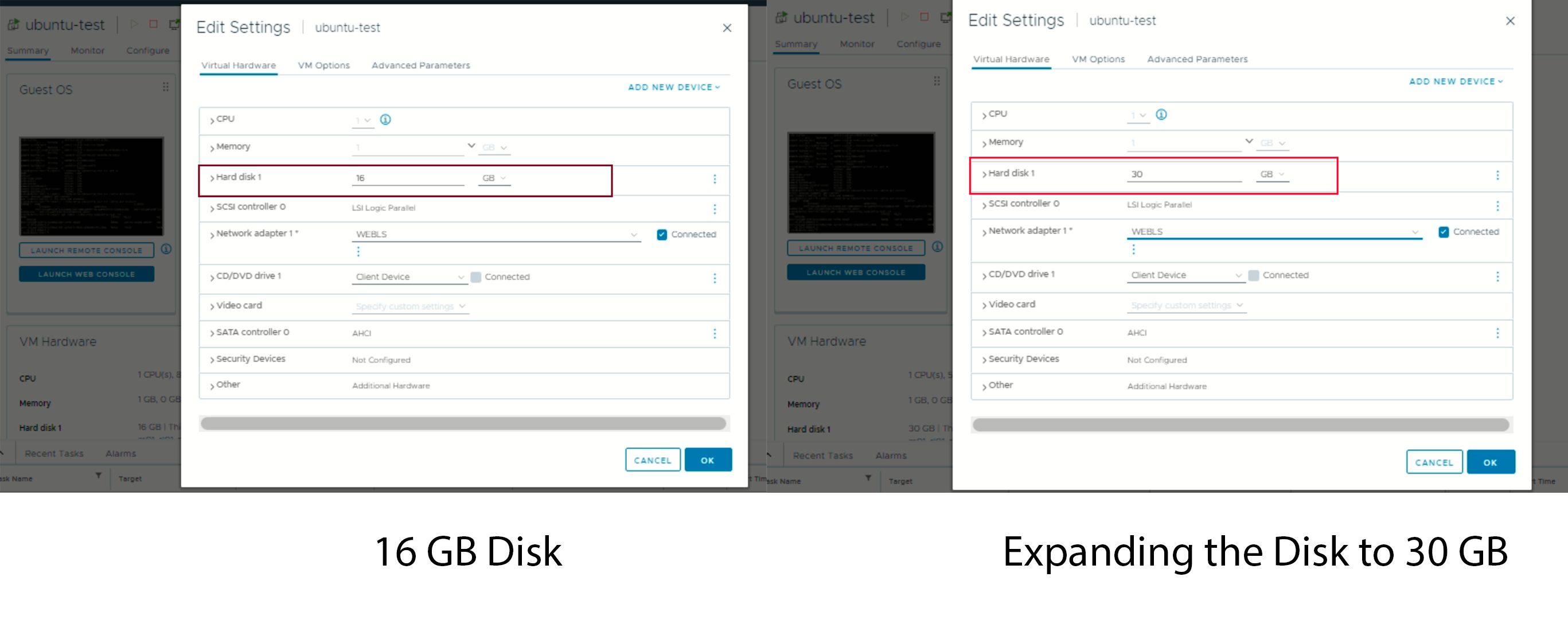
expand-disk

root@ubuntu-test:~# df -h
Filesystem                         Size  Used Avail Use% Mounted on
tmpfs                               98M  1.3M   96M   2% /run
/dev/mapper/ubuntu--vg-ubuntu--lv  9.8G  6.7G  2.6G  73% /
tmpfs                              486M     0  486M   0% /dev/shm
tmpfs                              5.0M     0  5.0M   0% /run/lock
/dev/sda2                          1.7G  247M  1.4G  16% /boot
tmpfs                               98M  4.0K   98M   1% /run/user/1000

Disk is still not visible/listed

Step 2: Rescan the Disk

After resizing the disk, you may need to prompt Linux to recognize the additional free space. To check for free space, run the cfdisk command and see if it lists free space. Use “q” to exit when done. If there’s no free space listed, initiate a rescan for /dev/sda with the command:

echo 1 > /sys/class/block/sda/device/rescan

Stage 2: Modify the partition within the VM

(Note: It is time to stop, if you have not backup all your data, or if you are not sure about what you are doing.)

Step 6: type the following command, find Disk /dev/sda, and confirm the size (of step 3).

$ sudo fdisk -l

Step 7: Run the command

$ sudo fdisk /dev/sda

Step 8: Type 'p' to check the partition info.

(Warning: if you have more than one partitions, STOP using this guide.)

Step 9: Type 'd' to delete Partition 1.

Step 10: Type 'p', and confirm the changes

Step 11: Type 'n', hit 'Enter' 4 times to use defaults ([Partition type], [Partition number], [first sector], and [last sector]), and type 'n'. (You might not need the last 'n'.)

Note: Chose [N]

Partition #3 contains a LVM2_member signature.

Do you want to remove the signature? [Y]es/[N]o: n


Step 12: Type 'p', confirm the changes, and then type 'w'

Step 13: Restart the virtual machine.

Stage 3: Resize the disk space within the VM

Step 14: Run following command

$ sudo resize2fs /dev/sda1


Step 4: Extend the Physical Volume (PV)

With the LVM partition backing up the /dev/sda3 PV extended, it’s time to extend the PV itself.

Run

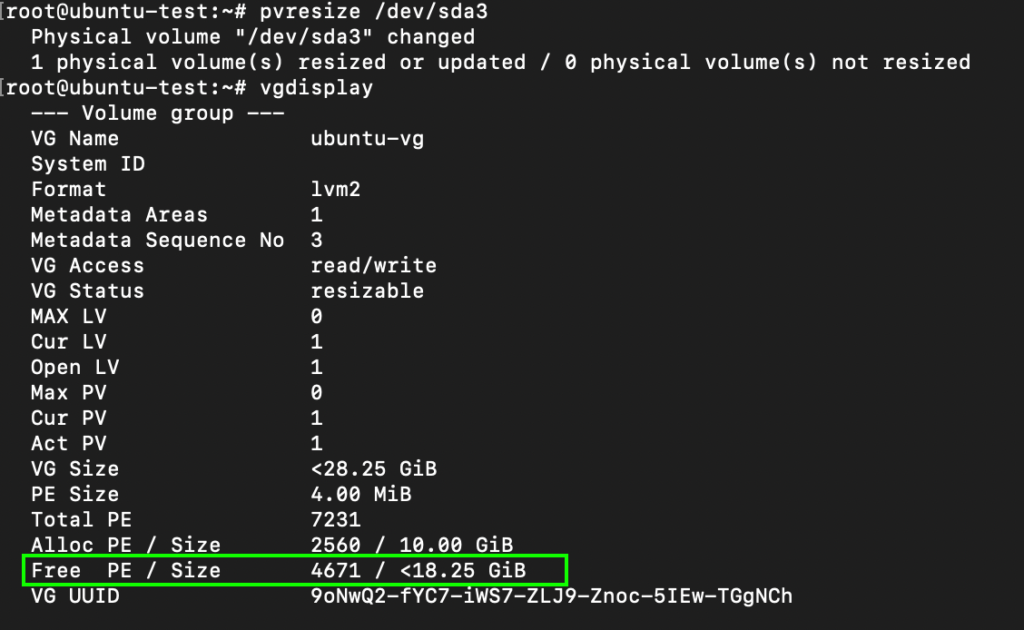
pvresize /dev/sda3

to accomplish this, and then use pvdisplay to verify the new size. In our example, the PV has increased from 14.2GB to 28.2G.

Step 5: Check Volume Group (VG) Free Space

Now, check the VG’s free space using vgdisplay. In our case, there’s 18.25 GiB of free space available within the VG.
Step 6: Extend Logical Volume (LV)

Use lvdisplay to verify the size of your upstream Logical Volume (LV). Extend the LV to use all available VG free space with the below command

lvextend -l +100%FREE /dev/ubuntu-vg/ubuntu-lv

Check the LV one more time with lvdisplay to ensure it’s been extended.

root@ubuntu-test:~# lvextend -l +100%FREE /dev/ubuntu-vg/ubuntu-lv
  Size of logical volume ubuntu-vg/ubuntu-lv changed from 10.00 GiB (2560 extents) to <28.25 GiB (7231 extents).
  Logical volume ubuntu-vg/ubuntu-lv successfully resized.
root@ubuntu-test:~# lvdisplay
  --- Logical volume ---
  LV Path                /dev/ubuntu-vg/ubuntu-lv
  LV Name                ubuntu-lv
  VG Name                ubuntu-vg
  LV UUID                xL1oCY-qBRL-cT86-jRRr-0cWK-0P4W-U0Y1Dp
  LV Write Access        read/write
  LV Creation host, time ubuntu-server, 2023-04-12 11:44:17 +0000
  LV Status              available
  # open                 1
  LV Size                <28.25 GiB
  Current LE             7231
  Segments               1
  Allocation             inherit
  Read ahead sectors     auto
  - currently set to     256
  Block device           253:0

Step 7: Resize the File System

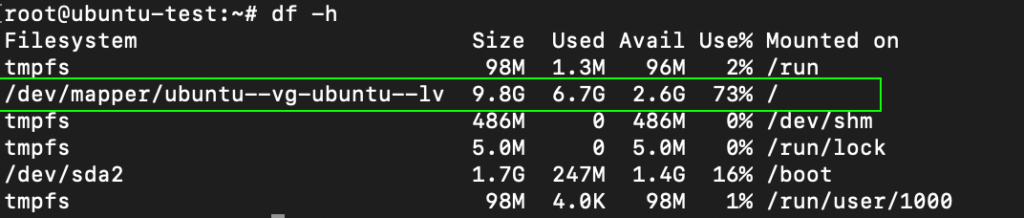
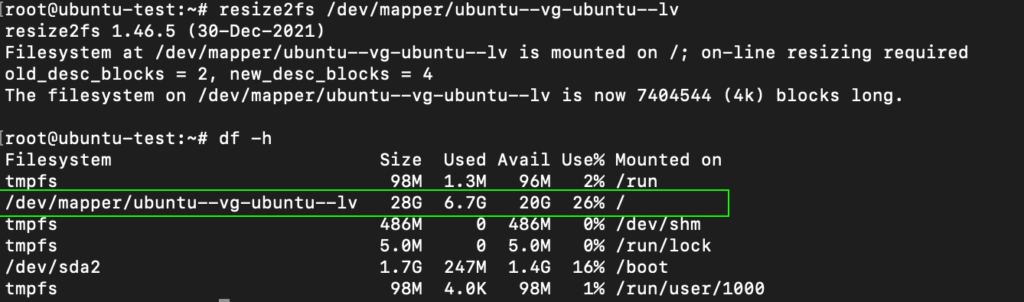
At this point, the block volume supporting your root filesystem has been expanded, but the filesystem itself needs resizing. Run df -h to check the current filesystem size. Use the below command to resize it, and run df -h once more to confirm the new available space.
resize2fs /dev/mapper/ubuntu--vg-ubuntu--lv 
Following the above steps, you can successfully expand your Linux Machine/VM physical or virtual disk space using LVM. This allows you to efficiently manage your storage resources and accommodate growing storage needs without disrupting your system. Hope this helps.

Đọc thêm..

Backup - Restore Remmina on Ubuntu


Installed Remmina on Ubuntu 16.04 and had to reinstall Ubuntu after a while because it wasn't running the best. On my first install, the location of all the Remmina connection files was /home/$USER/.local/share/remmina/ folder ($USER is the current user).

After I reinstalled my new setup of Ubuntu put all the connection files in the same location /home/$USER/.local/share/remmina/ and started up Remmina I had no connection. After reading this post, I created a new connection and seen a new folder created under /home/$USER/.remmina/ with that connection, so I copied all my connections into that folder /home/$USER/.remmina/.

sudo cp -r /home/$USER/.local/share/remmina/* /home/$USER/.remmina/
Đọc thêm..

ibus-bamboo

- Install ibus-bamboo

echo 'deb http://download.opensuse.org/repositories/home:/lamlng/Debian_11/ /' | sudo tee /etc/apt/sources.list.d/home:lamlng.list curl -fsSL

 https://download.opensuse.org/repositories/home:lamlng/Debian_11/Release.key | gpg --dearmor | sudo tee /etc/apt/trusted.gpg.d/home_lamlng.gpg > /dev/null sudo 

apt update

sudo apt install ibus-bamboo


vi /etc/environment
export GTK_IM_MODULE=ibus
export XMODIFIERS=@im=ibus
export QT_IM_MODULE=ibus

Đọc thêm..

Install XRDP on Linux

 - Install XRDP on Linux:

sudo apt install xrdp 

sudo systemctl status xrdp

sudo adduser xrdp ssl-cert 

sudo apt install xfce4 xfce4-goodies xorg dbus-x11 x11-xserver-utils

- Config file:

/etc/xrdp/sesman.ini 

/etc/xrdp/startwm.sh

/etc/X11/Xsession

Đọc thêm..

How to Kill Zombie Processes in Ubuntu


Use the ps command. I almost always use ps auxwww.

$ ps auxwww
USER       PID %CPU %MEM      VSZ    RSS   TT  STAT STARTED      TIME COMMAND
exegete  22199   0.0  0.2    79204   3280 s000  Z     9:16AM   0:00.78 vi
exegete  22185   0.0  0.0    75968    968 s000  S     9:16AM   0:00.01 -bash

According to the docs, a "Z" in the STAT column indicates a zombie process. Check the man pages: man ps

Using kill -9 <PID> to kill zomnie

OR

ps axo stat,ppid,pid,comm | grep -w defunct
ps -elf --forest | grep -C5 '<[d]efunct>'
 
OR
 

Basically:

1) Identify the zombie process:

ps axo stat,ppid,pid,comm | grep -w defunct

2) Kill the parent process:

sudo kill -9 <parent_process_number>
  
Đọc thêm..

Pulseaudio with HomeAssistant and Docker

I wanted to have direct 3.5mm pulse audio from Home Assistant container via the host with 3,5mm jack.
I added the following code in the docker-compose:
homeassistant:
    build: /home/docker-compose/homeassistant-custom
    restart: always
    volumes:
      - /dev:/dev
      - /tmp/.X11-unix:/tmp/.X11-unix
      - ~/.config/pulse/cookie:/root/.config/pulse/cookie
      - /run/user/1000/pulse:/run/user/1000/pulse
      - /var/run:/var/run
      - /run/dbus/:/run/dbus/:rw
      - /dev/shm:/dev/shm
    environment:
      - PULSE_SERVER=/run/user/1000/pulse/native
      - PULSE_COOKIE=/root/.config/pulse/cookie
    devices:
      - /dev/snd:/dev/snd
This code is added on top of your normal docker-compose lines.  Furthermore i created the home-assistant-custom dir and add the following in dockerfile
FROM homeassistant/home-assistant:latest
RUN apt-get update && \
    apt-get install -y vlc-nox apt-utils alsa-utils nano pulseaudio && \
    usermod -a -G audio root && \
    usermod -a -G pulse-access root
Now you can get TTS pulse audio from HA, just add a media_player:
media_player:
- platform: vlc
  name: speaker_1
  arguments: '--alsa-audio-device=hw:0,0'
And use it in a script or automation.


(https://www.martinvdm.nl/2018/08/25/pulseaudio-with-homeassistant-and-docker/)
Đọc thêm..

Rc.local on ubuntu 18.04

  1. Create a service:
    sudo vi /etc/systemd/system/rc-local.service
    
  2. Add your code there:
    [Unit]
    Description=/etc/rc.local Compatibility
    ConditionPathExists=/etc/rc.local
    
    [Service]
    Type=forking
    ExecStart=/etc/rc.local start
    TimeoutSec=0
    StandardOutput=tty
    RemainAfterExit=yes
    SysVStartPriority=99
    
    [Install]
    WantedBy=multi-user.target
    
  3. Create and make sure /etc/rc.local is executable and add this code inside it:
    sudo chmod +x /etc/rc.local
    #!/bin/sh -e
    #
    # rc.local
    #
    # This script is executed at the end of each multiuser runlevel.
    # Make sure that the script will "exit 0" on success or any other
    # value on error.
    #
    # In order to enable or disable this script just change the execution
    # bits.
    #
    # By default this script does nothing.
    
    exit 0
    
  4. Enable the service:
    sudo systemctl enable rc-local
    
  5. Start service and check status:
    sudo systemctl start rc-local.service
    sudo systemctl status rc-local.service
    
  6. If all goes well you can add your code to the /etc/rc.local file then restart it.
Đọc thêm..

Resizing the disk space on Ubuntu Server VMs running on VMware ESXi 5

Resizing the disk space on Ubuntu Server VMs running on VMware ESXi 5 

- fdisk /dev/sda
- p
Device     Boot   Start      End  Sectors  Size Id Type
/dev/sda1  *       2048   999423   997376  487M 83 Linux
/dev/sda2       1001470 33552383 32550914 15.5G  5 Extended
/dev/sda5       1001472 33552383 32550912 15.5G 8e Linux LVM
- d

- 2
- n 
- e
- enter
- n 
- enter
- t 8e
 
I ran this command to resize the physical volume.
ubuntu@brick:~$ sudo pvresize /dev/sda5
Physical volume "/dev/sda5" changed
1 physical volume(s) resized / 0 physical volume(s) not resized

Then I ran this command to resize the logical root volume
ubuntu@brick:~$ sudo lvresize -l +100%FREE /dev/mapper/brick-root
Extending logical volume root to 118.76 GiB
Logical volume root successfully resized

Then I ran this command to resize the file system on the root partition. This took about 6 seconds.
ubuntu@brick:~$ sudo resize2fs /dev/mapper/brick-root
resize2fs 1.42.5 (29-Jul-2012)
Filesystem at /dev/mapper/brick-root is mounted on /; on-line resizing required
old_desc_blocks = 5, new_desc_blocks = 8
The filesystem on /dev/mapper/brick-root is now 31132672 blocks long.
Đọc thêm..

Chmod file, directory in linux

For directories only do this.

Code:
find . -type d -exec chmod 775 {} \;
For files only do this.
Code:
find . -type f -exec chmod 664 {} \;
Đọc thêm..

Hướng dẫn gõ tiếng việt bằng Ibus trên Skype

Vấn đề gõ tiếng việt bằng ibus trên ứng dụng Skype có lẽ cũng rất nhiều người gặp(kể cả mình). Vì yêu cầu công việc nên mình phải dùng linux và liên lạc với đồng nghiệp qua skype. Sau một hồi tìm kiếm thì cũng đã gõ được tiếng việt trên skype, mình post lên để những ai chưa biết có thể tham khảo.

Bước 1: cài package ibus-qt4

Mã:
sudo apt-get install ibus-qt4


Bước 2: Thêm những dòng dưới đây vào cuối file /home/[tên người dùng]/.bashsrc

Mã:
export GTK_IM_MODULE=ibus
export XMODIFIERS=@im=ibus
export QT_IM_MODULE=ibus
export XIM_PROGRAM=/usr/bin/ibus-daemon


Bước 3: Chạy ibus bằng lệnh ibus-daemon -drx thay vì lệnh ibus-daemon như bình thường.
Đọc thêm..

Configuring ddclient on Ubuntu Server to work with Dynu.com

First, install ddclient on your Ubuntu box:

sudo apt-get install ddclient

Then configure the ddclient:

sudo nano /etc/ddclient.conf

The contents should be similar to the following, using your username, password, domain name obviously:

# Configuration file for ddclient generated by debconf
#
# /etc/ddclient.conf
protocol=dyndns2
use=web, web=checkip.dynu.com/, web-skip='IP Address'
server=api.dynu.com
login=username
password='password'
domain.dynu.com

You can also determine the update interval by specifying the following in ddclient.conf:

# check every 60 seconds
daemon=60

Be sure to put all the parameters in the configuration file before running DDClient. You can run DDClient as /usr/sbin/ddclient -daemon 300 -syslog which ensures that it is in daemon mode.

If you think your configuration is correct, but DDClient does not work as expected, you can enable debug and verbose messages by running ddclient -daemon=0 -debug -verbose -noquiet


# ddclient configuration for Dynu
#
# /etc/ddclient.conf
daemon=60                                                    # Check every 60 seconds.
syslog=yes                                                   # Log update msgs to syslog.
mail=root                                                    # Mail all msgs to root.
mail-failure=root                                            # Mail failed update msgs to root.
pid=/var/run/ddclient.pid                                    # Record PID in file.                                      
use=web, web=checkip.dynu.com/, web-skip='IP Address'        # Get ip from server.
server=api.dynu.com                                          # IP update server.
protocol=dyndns2                        
login=myusername                                             # Your username.
password=YOURPASSWORD                                        # Password or MD5 of password.
MYDOMAIN.DYNU.COM                                            # List one or more hostnames one on each line.
#MYDOMAIN.COM
Đọc thêm..

Rsyslog filter

Ubuntu uses rsyslog so you can configure it to filter messages and write them to arbitary log files e.g create a file /etc/rsyslog.d/shorewall.conf
:msg, contains, "Shorewall:" /var/log/shorewall
& ~
Or if you want to split things out some more
:msg, contains, "Shorewall:cust2net:ACCEPT:" /var/log/shorewallc2na.log
& ~

:msg, contains, "Shorewall:" /var/log/shorewall
& ~
Which puts all messages containing "Shorewall:cust2net:ACCEPT:" into one log file and any other messages containing "Shorewall" into a different log file.
You need to restart rsyslogd for this to take effect.
Đọc thêm..

Command to set logfiles greater than 100mb to zero

SHELL=/bin/sh
PATH=/usr/local/sbin:/usr/local/bin:/sbin:/bin:/usr/sbin:/usr/bin
MAILTO=root
*/8 * * * *   root  find /var/log /var/local/log -size +100M -type f | while read file; do cat /dev/null > $file && echo "$file > 100M (set to zero)"; done
Đọc thêm..

“Disable Touchpad while typing option” gone in Ubuntu 16.04 LTS

In short, edit your quirks file:
sudo vim /usr/share/X11/xorg.conf.d/51-synaptics-quirks.conf
And add the following to the end of the file:
# Disable generic Synaptics device, as we're using
# "DLL0704:01 06CB:76AE Touchpad"
# Having multiple touchpad devices running confuses syndaemon
Section "InputClass"
        Identifier "SynPS/2 Synaptics TouchPad"
        MatchProduct "SynPS/2 Synaptics TouchPad"
        MatchIsTouchpad "on"
        MatchOS "Linux"
        MatchDevicePath "/dev/input/event*"
        Option "Ignore" "on"
EndSection
Now restart Xorg:
sudo systemctl restart lightdm
Now, just start syndaemon as usual:
killall syndaemon
syndaemon -i 0.50 -m 0.10 -d -K
Note: For some reason, two-finger scrolling didn't work until I fully rebooted my laptop, but it eventually started working.
Đọc thêm..

PFsense custom DHCPD configuration

PFsense custom DHCPD configuration

pfSense is my prefered router/firewall distro. It’s rock solid and has tons of features.
You can run pfSense on any PC, but if you want to keep the power and heat down to a minimum you can use an  Alix board (http://www.pcengines.ch/alix.htm) or similar.
One of the few things you can’t do in pfSense is modify your dhcpd.conf file directly.
For the vast majority of deployments, the built in control you have will be more than enough. It supports multiple vlans, and custom options. But…
If you need something special, like running a DHCP Server for several IP subnets, then you need a different approach. Or maybe you just like to maintain a single file instead of using the GUI interface.
This is not a common requirement for a network, but it does happen.
I had a test-lab with a few Layer 3 switches and several subnets. I wanted to have an easy one-file configuration for the entire network using only the low-power pfSense router. So I had to figure out a way to do that.
There is no dhcpd.conf file you can edit because it’s generated on each boot using the config.xml file (managed by all the settings in the GUI). Now the problem is that if you want any special settings in your dhcpd.conf file, it might not be supported by the config.xml markup and/or the GUI.
DHCP daemon starts in a chrooted environment in /var/dhcpd, so all files are located with this folder as a parent.
The solution is pretty simple. Just stop the DHCP daemon after boot, replace the dhcpd.conf file and restart the daemon.
If you don’t have a monitor on your router, you can enable SSH or use a serial console cable.
It’s also possible to do almost everything using the Diagnostics -> Edit File menu item in the GUI. To create a file, just enter the full path and click Save.
ScreenClip
This solution requires two files.
1) 
The first one is a script, like this:

#/bin/bash
killall -3 dhcpd
cp /var/dhcpd/etc/dhcpd.override /var/dhcpd/etc/dhcpd.conf
/usr/local/sbin/dhcpd -user dhcpd -group _dhcp -chroot /var/dhcpd -cf /etc/dhcpd.conf -pf /var/run/dhcpd.pid le1 le0

Save it as: /usr/local/etc/rc.d/dhcpdoverride.sh
pfSense will run any script in this folder (/urs/local/etc/rc.d/) after it has started. The only requirements is the execute flag and that the file ends with .sh
So you’ll need to run this command as well:

chmod +x /usr/local/etc/rc.d/dhcpdoverride.sh

NOTE!
The last command in this file may be different from system to system. Notice that one or more interfaces are being listed at the end. It’s easy to get the exact command of your system if you have done the initial configuration in GUI (included the interfaces you’ll be using).
Just run this command:

ps axww | grep dhcpd

The output should look something like this:

[2.1.3-RELEASE][root@pfSense.localdomain]/var(35): ps axww | grep dhcpd
38392  ??  Ss     0:00.04 /usr/local/sbin/dhcpd -user dhcpd -group _dhcp -chroot /var/dhcpd -cf /etc/dhcpd.conf -pf /var/run/dhcpd.pid le1 le0

I’m using two interfaces with DCHPD, so two interfaces are listed at the end.
2)
The second file is your own dhcpd.conf file.
If you have a file already then just save it as:
/var/dhcpd/etc/dhcpd.conf.override
If you don’t have a file already made, you can do the initial configuration in the GUI and just copy the file that is created. Then you have a good starting point.
After you have done your initial configuration in the GUI you can copy it like this:

cp /var/dhcpd/etc/dhcpd.conf /var/dhcpd/etc/dhcpd.conf.override

OR, using the GUI, like this
Go to Using Diagnostics -> Edit file:
open /var/dhcpd/etc/dhcpd.conf
then edit the filepath to /var/dhcpd/etc/dhcpd.conf.override and click Save
And that’s all!
Now you can edit dhcpd.conf.override with IP subnets, or anything you like.
An example of dhcpd.conf with multiple subnets:
option domain-name "localdomain";
default-lease-time 7200;
max-lease-time 86400;
log-facility local7;
ddns-update-style none;
authoritative;

#Subnet Alpha
subnet 10.50.150.0 netmask 255.255.255.0 {
  pool {
    range 10.50.150.100 10.50.150.200;
  }
  option routers 10.50.150.3;
  option domain-name-servers 10.50.150.3;
}

#Subnet Delta
subnet 10.18.200.0 netmask 255.255.255.0 {
  pool {
    range 10.18.200.100 10.18.200.200;
  }
  option routers 10.18.200.2;
  option domain-name-servers 10.50.150.3;# ex. a static IP address for a printer

  host HPPrinter { # example of a static IP address for a device
    hardware ethernet xx:xx:xx:xx:xx:xx; # replace the MAC address
    fixed-address 10.18.200.10;
    option host-name "HPLaserJet";
  }
}
NOTE!
You’ll need to replace the xx:xx:xx…  with the actual MAC address of your device.
And also;
If you are doing this to create subnets, you will also need to enable DHCP relay on your switch or routers between these subnets.

You can edit the override file from WebGui using the edit file menu.
Đọc thêm..

Preparing Ubuntu template virtual machines

Preparing Ubuntu template virtual machines

Bob Plankers has a great post over at lonelysysadmin.net for preparing CentOS based virtual machines for being a template. As I’ve started working with Ubuntu more I decided to take that list and Ubuntu-ize it (mostly from proding by Sarah Zelechoski – one of the smartest people I’ve ever had the privilege to work with…so many thank you’s). Anyways here is that guide… Ubuntu-ized.
Stop logging services (auditd and rsyslog):
service auditd stop
service rsyslog stop
Check for, and remove old kernels
Check your current kernel by running
uname -r
Then run
dpkg -l | grep linux-image-
If additional images are listed, remove them by running
apt-get autoremove linux-image-#.##.#
You can remove multiple images all on the same line just by listing them one after another.
Clean out apt-get
apt-get clean
Force the logs to rotate & remove old logs we don’t need
logrotate –f /etc/logrotate.conf
find /var/log -name "*.gz" -type f -delete
Truncate the audit logs (and other logs we want to keep placeholders for)
cat /dev/null > /var/log/audit/audit.log
cat /dev/null > /var/log/wtmp
cat /dev/null > /var/log/lastlog
Remove the udev persistent device rules
Well, saved a step here – there are rules which exclude creating files that match MAC addresses for VMware, Hyper-V, KVM, Xen, and virtualbox (see /lib/udev/rules.d/75-persistent-net-generator.rules). So long as your MAC matches this, nothing to clean up. Otherwise
rm -f /etc/udev/rules.d/70-persistent-net.rules
It will be recreated on the next boot, so any time you power on this VM (updates maybe?) you’ll need to delete this file again so it is not saved in the template.
Remove the traces of the template MAC address and UUIDs.
Here is another step you shouldn’t need to do, however you may want to check /etc/network/interfaces to verify
Clean /tmp out
rm -rf /tmp/*
rm -rf /var/tmp/*
Remove the SSH host keys
rm –rf /etc/ssh/*key*
rm –rf ~/.ssh/authorized_keys
Update network config
If you have set /etc/network/interfaces, make sure to reset for cloning purposes. For example as I wrote this it had a static IP address which I changed to DHCP before shutting down and converting to a template.
Remove hostname
If you have named your virtual machine anything other than localhost, and want the template to spin up with a generic name, versus say “ubuntu-template” remove entry from /etc/hostname
cat /dev/null > /etc/hostname
Remove the user’s shell history
If you have switched to root at any point, do this as root and individual user accounts
history -w
history -c
That should about do it, depending on where this template is going, make sure any ISOs attached to the CD-ROM or networks for the NIC’s are adjusted properly. While many of the steps were the same there were a few differences to be aware of. Anything else you like to clean out? Comment below please!
Đọc thêm..